Scape keyboard shortcuts for Mac and Windows
Find useful Scape shortcuts for Mac and Windows.
 Hilma BengtssonUpdated
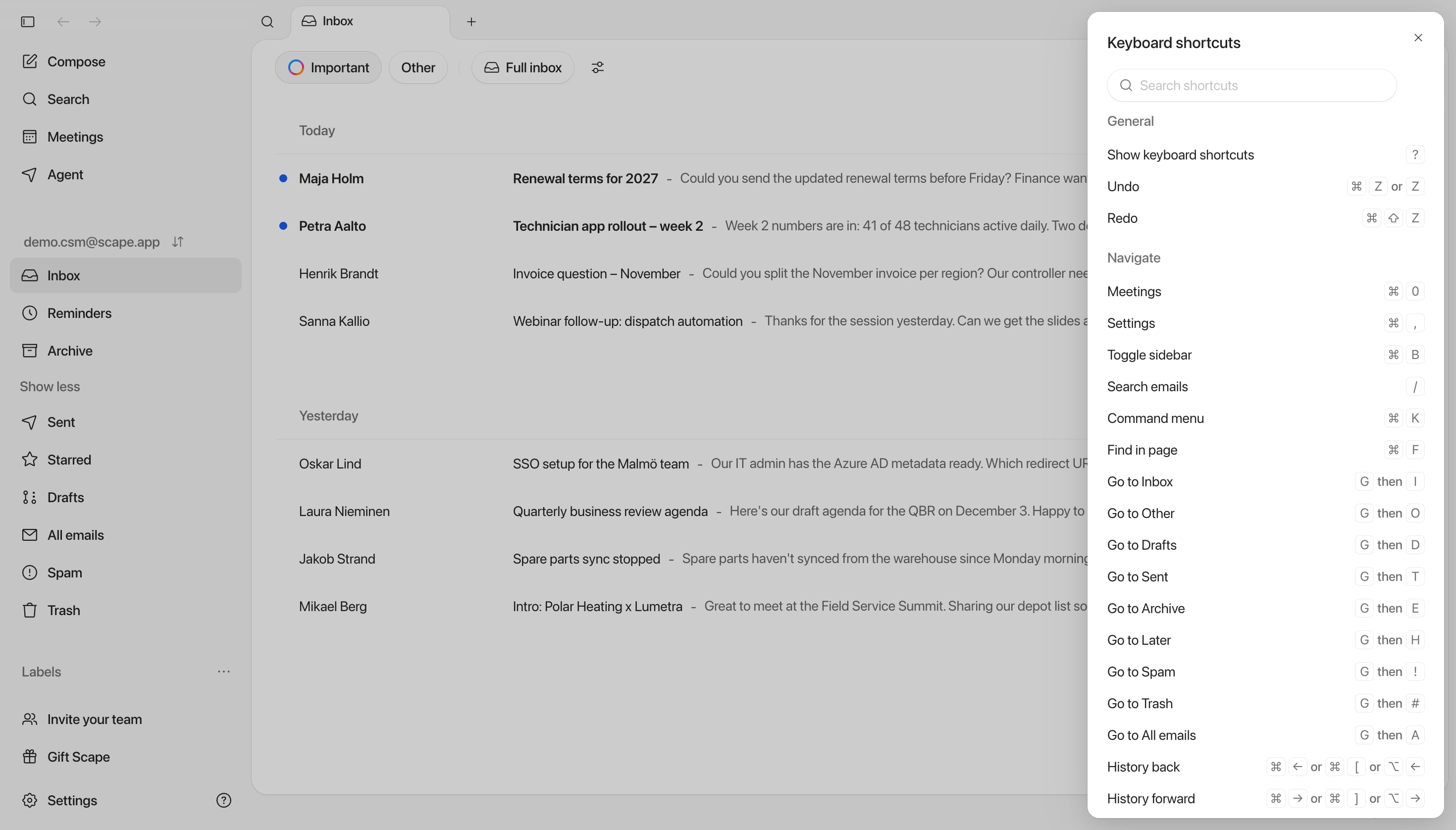
Find keyboard shortcuts in Scape
Once you know a few shortcuts, you can move through your inbox without reaching for the mouse every time. Scape has a searchable shortcut reference built into the desktop app, so you can look up a key whenever you need it.
In the desktop app, open Help → Keyboard shortcuts at the bottom of the left sidebar. Or press ? on Mac or Windows to open the searchable shortcut reference.
The shortcut panel shows the full list for your platform. Some shortcuts work only in a specific view, such as an open thread or the compose window.
Shortcuts to get started
| Mac | Windows | |
|---|---|---|
| Open the shortcut reference | ? | ? |
| Compose a new email | C | C |
| Search email | / | / |
| Move through the thread list | J / K | J / K |
| Reply / reply all / forward in an open thread | R / Enter / F | R / Enter / F |
| Archive / snooze / mark read or unread | E / H / U | E / H / U |
| Open Quick Draft while composing | Cmd+J | Ctrl+J |
| Send / schedule send | Cmd+Enter / Cmd+Shift+L | Ctrl+Enter / Ctrl+Shift+L |
| Show or hide the Agent | Cmd+S | Ctrl+S |
| Open Agent popover / sidebar / full page | Cmd+Option+P / S / F | Alt+Shift+P / S / F |
| Switch connected inboxes | Ctrl+1, Ctrl+2, … | Alt+1, Alt+2, … |
| Show All Inboxes | Ctrl+0 | Alt+0 |
| One-click unsubscribe, where supported | Cmd+U | Ctrl+Shift+U |
| Undo / redo | Cmd+Z / Cmd+Shift+Z | Ctrl+Z / Ctrl+Y |
Two shortcuts to remember
Most of the keys in the table work the same way on Mac and Windows. There are two exceptions that are easy to mix up: on Mac, use Control, not Command, to switch connected inboxes. On Windows, use Alt+Shift for the three Agent views.
If a key does nothing, check which view is open and look it up in the shortcut panel. The reference is searchable, so you don’t have to memorize the whole list.
Build a small shortcut habit
Start with the actions you repeat most, such as composing, searching, replying, and archiving. Try a few for a couple of days, then add another when those feel familiar. It’s easier to remember shortcuts when you use them in the same workflow each day.
Be especially careful with shortcuts that send a message or change its status. Review recipients and content before sending, and use Undo if you trigger an action by mistake.
Gmail and Outlook have their own keyboard shortcuts, which can differ from Scape’s. Check the app-specific shortcut guide when switching between email clients. See the official Gmail keyboard shortcuts guide and Outlook keyboard shortcuts guide.
A useful sequence is to open a customer conversation, read its latest request, and use Quick Draft while composing. Add an instruction such as “confirm the revised scope and ask which date works,” then review the result before using the send shortcut. The shortcut opens the drafting workflow; it does not replace checking what the email promises.
For a first-day walkthrough that puts these actions in context, see how to set up Scape.
Frequent questions
Answers to common questions. For anything else, the Scape team reads every email.
Contact ScapeHow do I see keyboard shortcuts in Scape?
In the desktop app, choose Help → Keyboard shortcuts at the bottom of the left sidebar, or press ? to open the searchable reference.
Are Mac and Windows shortcuts the same?
Many are the same, but a few use different modifier keys. The shortcut reference shows the full list for your platform.
How do I switch between inboxes with a shortcut?
On Mac, use Control+1, Control+2, and so on. On Windows, use Alt+1, Alt+2, and so on. Use Control+0 on Mac or Alt+0 on Windows to show All Inboxes.
How do I open the Scape Agent with a keyboard shortcut?
Use Cmd+S on Mac or Ctrl+S on Windows to show or hide the Agent. For its popover, sidebar, and full-page views, use Cmd+Option+P, S, or F on Mac and Alt+Shift+P, S, or F on Windows.