How to set up Scape for your work email and meetings
Connect your inbox, organize incoming email, and try your first workflow.
 Hilma BengtssonUpdated
Start with one inbox and one real task
A useful Scape setup starts with the work you already do. Connect one inbox, choose a customer conversation, and follow it from finding the context to reviewing a reply. Once that works, add more accounts, labels, and connected apps.
You do not need to organize every message on the first day. Begin with a few repeat categories and one workflow you can check, such as preparing for a call or answering an onboarding question.
Connect the accounts you use
- 1
Add your work inbox
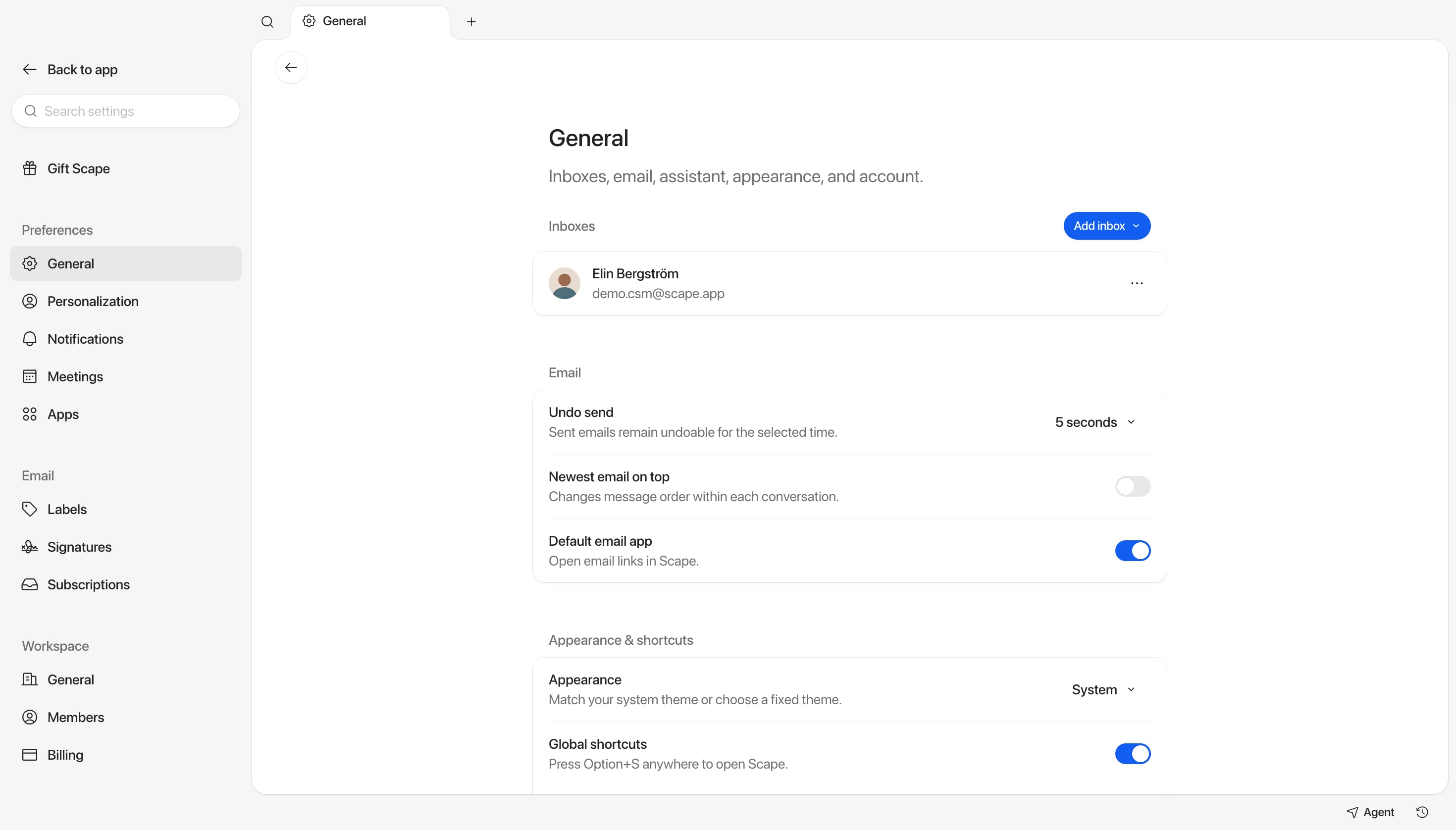
In Scape, open Settings → General → Inboxes, then choose Add inbox and select Google or Microsoft. Sign in to the account you want to use.
- 2
Review access and check the messages
Follow the permission prompts and confirm the inbox shows as connected. Open a recent conversation you recognize to check that you are working in the right account.
- 3
Choose the account view
If you connect more than one inbox, choose an individual inbox to focus on it, or All Inboxes to see the accounts together. Check the account and From address before replying.
For the full steps, see Gmail setup or Outlook setup. If your organization needs to approve Microsoft access, send its administrator the admin guide.
Create labels around the decisions you make
Choose a small set of categories that explain what a message needs: a reply, payment, reference, or reading later. Scape can create and automatically apply labels using your instructions.
Ask Scape
Create a Newsletters label for subscriptions and product updates. Exclude customer questions, invoices needing payment, and security alerts.
Check examples before turning on auto-archive. Start with predictable low-priority mail, then refine the instructions if something is sorted incorrectly. Follow the label and auto-archive guide for the full workflow.
Try a draft and make it sound like you
Open a conversation that needs a reply and give Scape the outcome you want. Quick Draft can use your writing style and the conversation; a specific instruction tells it what this answer needs to do.
Ask Scape
Draft a reply in my usual style. Thank Maya for the proposal and ask whether the revised scope includes onboarding. Keep it short.
Read the draft for accuracy as well as tone. Check the recipient, any dates, and anything that sounds like a promise. Edit the wording and send when it is ready. Use Cmd+J on Mac or Ctrl+J on Windows while composing to open Quick Draft.
Connect the app that holds the missing context
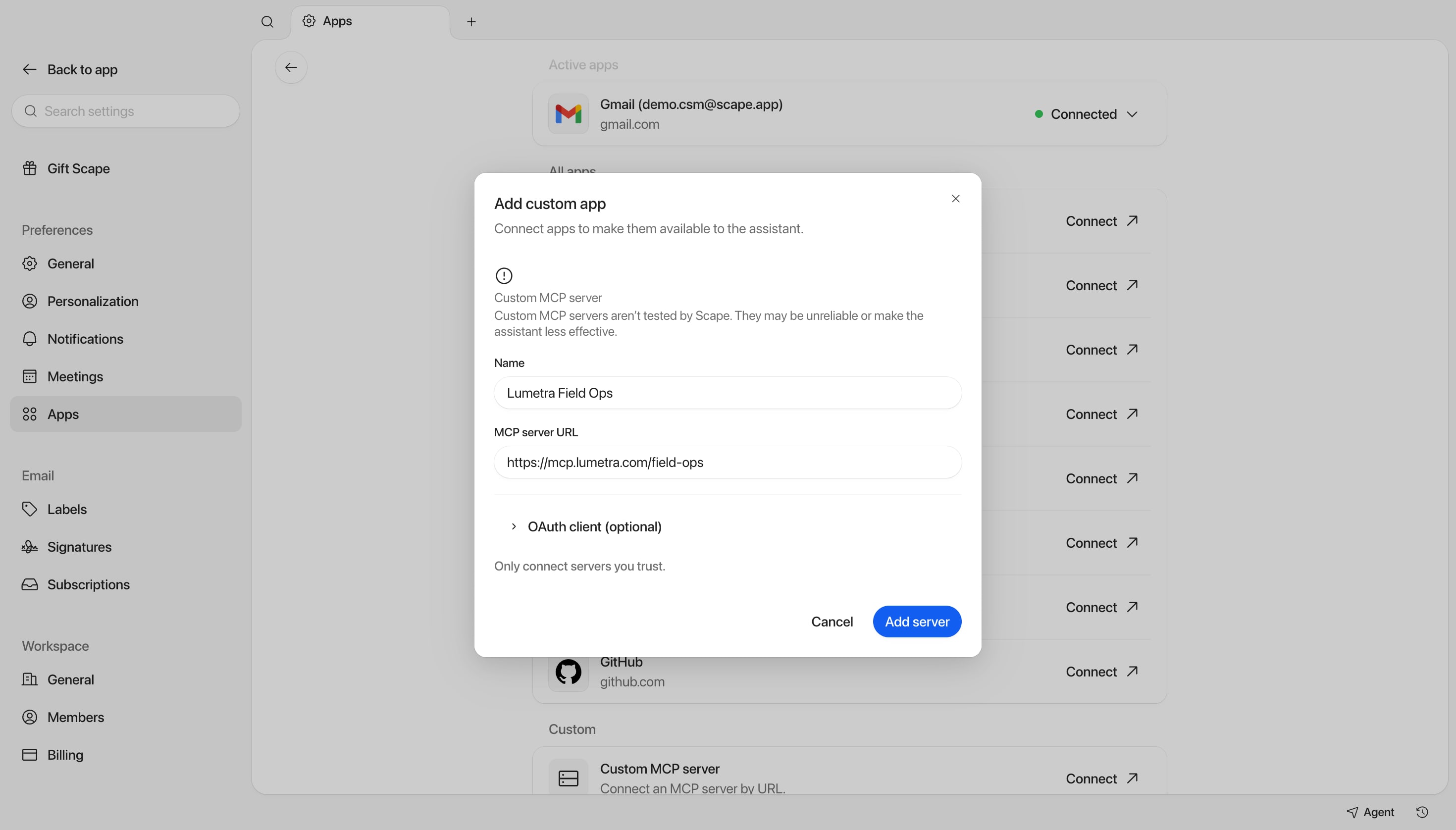
Add the service you actually need for the next task. Use Slack for a team discussion, Linear for an issue, Notion for a brief, or Attio or HubSpot for account history. Open Settings → Apps, choose the service and follow its authorization flow.
Start with a read-only question about a record you recognize, and ask for the source link. Then try using that context in an email. See Slack, Linear, Notion, Attio, or HubSpot for the setup and useful examples.
Use your next meeting as the first complete workflow
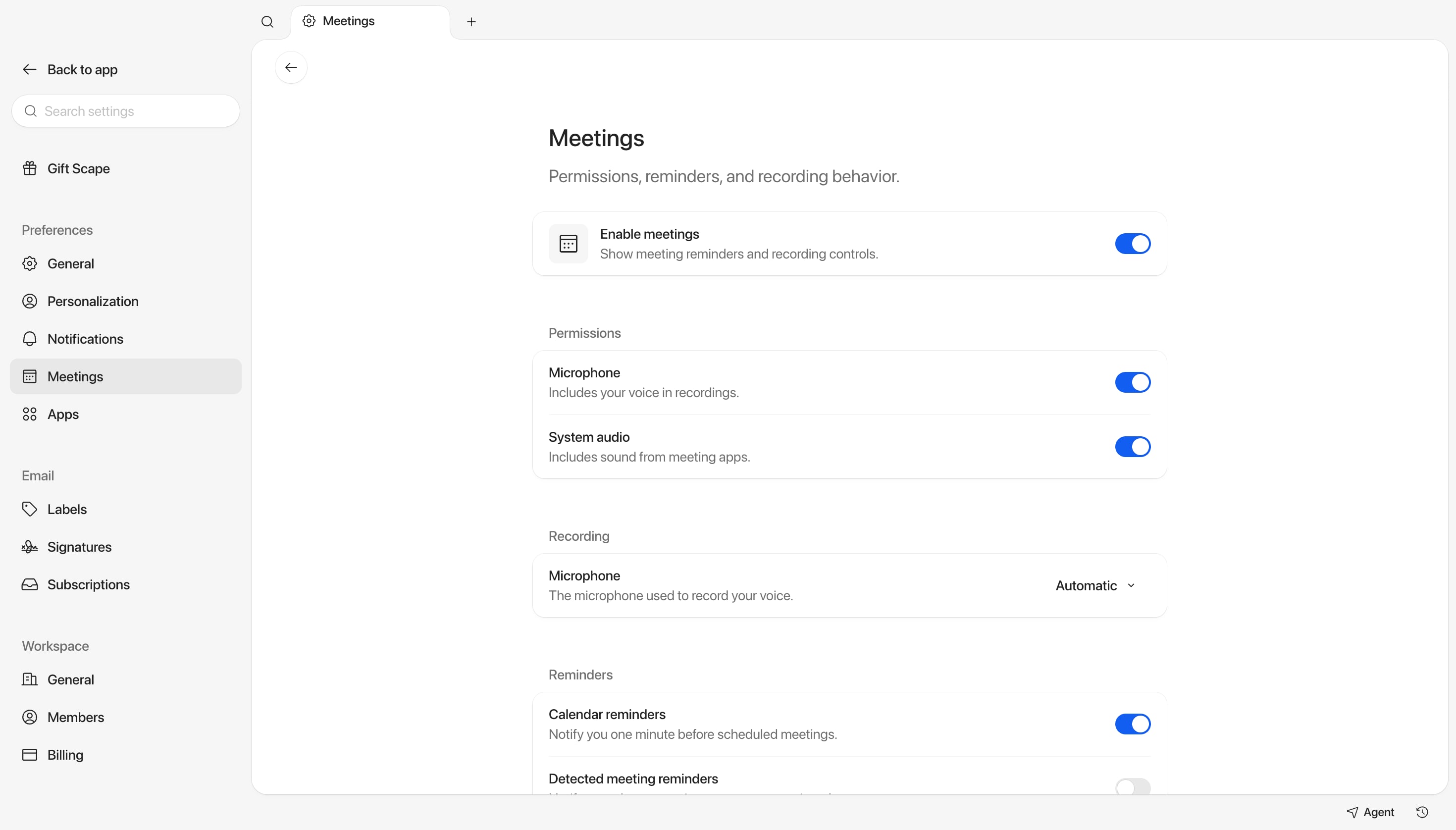
Before the call, ask Scape for recent email context and open questions. Record a supported meeting in Scape, then use its transcript and the email thread to prepare the follow-up. Review the decisions, owners, and dates before sending.
This connects setup to a task you can judge: did the brief find the right context, and does the draft reflect what the customer agreed? Start with meeting preparation, then turn the meeting into a follow-up.
Add reminders and recurring checks when the basics work
Set a reminder when a conversation needs your attention on a particular day. If you repeat the same check every week, consider a scheduled summary instead of searching from scratch each time.
Define the account, the time period, and the output you want. Test the instructions on a small set of conversations before relying on a recurring run. The email workflow automation guide explains how to keep that setup specific.
Related articles
Frequent questions
Answers to common questions. For anything else, the Scape team reads every email.
Contact ScapeWhere should I start in Scape?
Connect the inbox you use most, check a known conversation, and try one draft or meeting-preparation task before adding more setup.
Should I connect every app immediately?
Connect the sources needed for your first workflow. Check a known record and its source link before adding more services.
Does auto-archive delete my email?
No. Auto-archive removes matching messages from the main inbox while keeping them available under their label and in search.
Can I use Gmail and Outlook together?
Yes. Connect both accounts and choose an individual inbox or All Inboxes. See the unified inbox guide.