Manage Gmail and Outlook in one inbox
Keep work email from Gmail and Outlook close together in Scape.
 Hilma BengtssonUpdated
Work across accounts without losing track of the sender
If you use one account for your team and another for a client or project, checking email can mean jumping between inboxes. Scape lets you connect Gmail and Outlook accounts and work with the connected email in one app.
A unified inbox brings messages from multiple accounts into one place. You can still check which account a message belongs to, and choose the right address when you reply.
Connect the accounts you use
Connect your Gmail and Microsoft Outlook accounts in Scape, following the sign-in and permission prompts for each provider. Your email address stays the same. Scape connects to the account rather than replacing it.
See setup instructions in Gmail integration and Outlook integration.
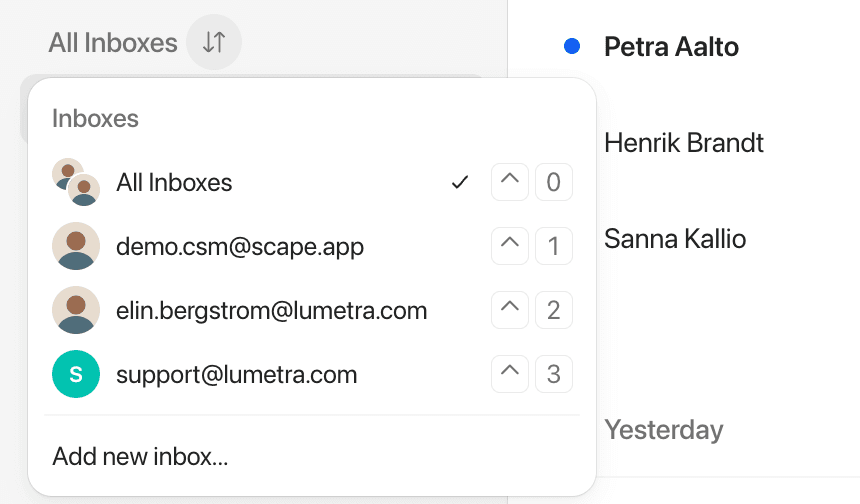
Choose one inbox or view all accounts together
You do not have to stay in a combined view. In Scape, select a connected inbox to focus on that account alone, or use All Inboxes to see messages across the connected addresses in one overview. A single-account view helps when you are working on one role or customer group; the combined view helps you spot what needs attention across your day.
When you open a message from All Inboxes, check which account it belongs to before replying. The overview brings the messages together without changing their email addresses or making every account share a sender identity.
You can also switch from the keyboard: use Control+1, Control+2, and so on on Mac, or Alt+1, Alt+2, and so on on Windows. Control+0 on Mac or Alt+0 on Windows opens All Inboxes. See Scape keyboard shortcuts for the full reference.
Find a message across accounts
Ask Scape to search for an email by sender, customer, topic, or detail you remember. You can ask about one account or look across connected context, depending on your request.
Ask Scape
Find the email from Northstar about the renewal terms. It may be in either inbox.
Open the matching message to confirm the account and thread before replying, especially if you have similar conversations in both inboxes.
Keep each inbox organized
Use Scape’s organization tools to group messages in ways that fit your work. You might separate customer requests from internal mail, or keep project updates easy to find across accounts.
A unified inbox does not mean every message should be handled the same way. Adjust categories and preferences to reflect the different roles of each account. For tips, read How to organize your email inbox.
Related articles
Frequent questions
Answers to common questions. For anything else, the Scape team reads every email.
Contact ScapeCan I connect Gmail and Outlook to Scape?
Yes. Scape works with Gmail and Microsoft Outlook accounts. Your organization may require an administrator to approve the connection.
Does a unified inbox change my email address?
No. Scape connects to the accounts you already use; your email addresses remain the same.
Can I search across multiple email accounts?
Scape can work with multiple connected inboxes. Include the sender, topic, or account in your request to narrow the search.
Can I send from different connected accounts?
Scape prepares a draft for you to review. Check the selected account and sender address before sending.