How to add a shared mailbox in Outlook

Add a shared mailbox and check read and send permissions.

Hilma BengtssonUpdated

What you need before adding a shared mailbox

A shared mailbox gives a team one place to manage email sent to an address such as support@ or sales@. Here’s how to add it in Outlook and what to check if it doesn’t appear.

Your Microsoft 365 administrator needs to create the mailbox and give you access. A shared mailbox is not a separate sign-in for each teammate. You usually open it from your own Outlook account after the right permissions are assigned.

If you also need to send from the shared address, ask your administrator for the appropriate send permission. Being able to read a mailbox does not always mean you can send from it.

Add a shared mailbox in Outlook on the web

  1. 1

    Sign in to Outlook on the web with your work account.

  2. 2

    In the folder pane, right-click Folders or your account name, depending on the version.

  3. 3

    Choose Add shared folder or mailbox.

  4. 4

    Enter the shared mailbox address and select Add.

  5. 5

    Look for the mailbox in your folder list and open it.

To open a mailbox you already have access to in a separate window, select your profile picture and choose Open another mailbox.
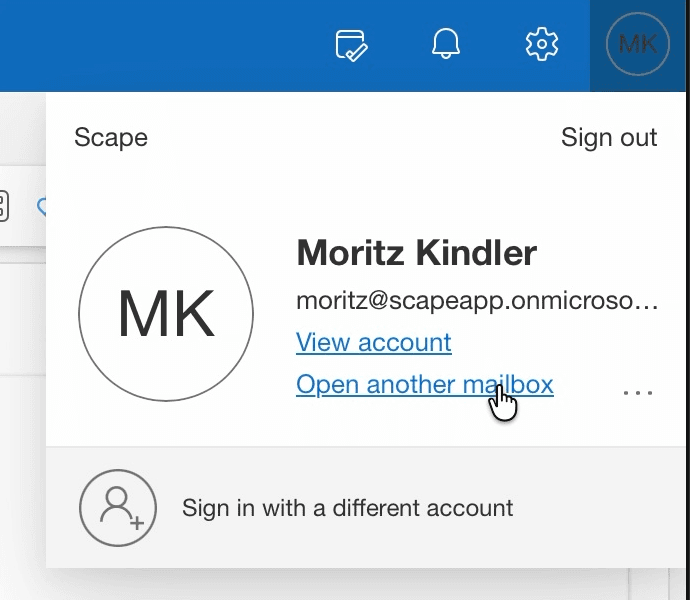
Outlook profile menu with the pointer on Open another mailbox.

Enter the shared mailbox address and select Open.
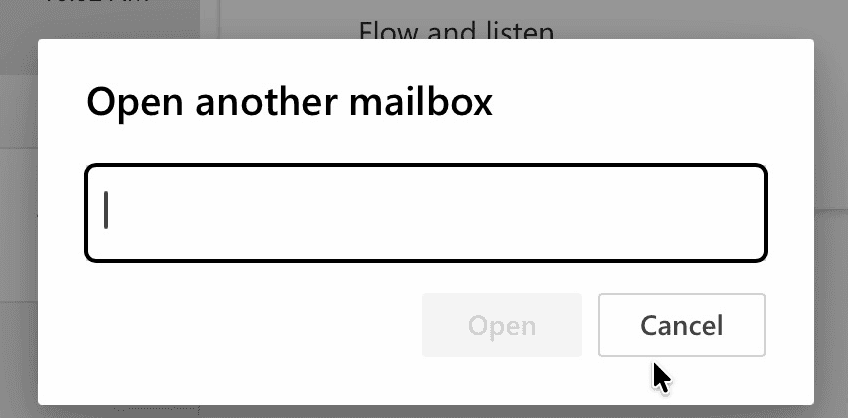
Outlook’s Open another mailbox dialog with an empty address field and Open and Cancel buttons.

Add a shared mailbox in new Outlook for Windows

  1. 1

    Open the folder pane and right-click Shared with me or your mailbox name.

  2. 2

    Choose Add shared folder or mailbox.

  3. 3

    Enter the shared address and confirm.

  4. 4

    Expand the mailbox in the folder list to view its folders.

If the mailbox does not appear automatically, select Mail, right-click your account name in the folder pane, and choose Add shared folder or mailbox. Enter the shared mailbox address. You need Full Access permission from your administrator.

Add a shared mailbox in classic Outlook

In classic Outlook for Windows, shared mailboxes often appear automatically after permission is granted. If they do not, open File → Account Settings → Account Settings, select your Exchange account, choose Change → More Settings → Advanced, and add the mailbox under Open these additional mailboxes. Menu names may vary by Outlook version and organization policy.

Send from the shared address

When you write a message, show the From field if it is hidden, then select the shared mailbox address. If it is not available, you may have read access without permission to send. Ask your administrator whether you need Send As or Send on Behalf permission.

Before sending, check the From address so the message goes out from the intended account.

If the mailbox does not appear

  • Confirm the administrator added your account to the mailbox.
  • Sign out and back in, or restart Outlook, to refresh permissions.
  • Check whether the mailbox appears in Outlook on the web even if it is missing in the desktop app.
  • Ask the administrator whether you have read access and separate send permission.

For tips on managing shared customer conversations, see Team email management for customer-facing teams.

Catch up on the shared conversation before replying

Once the mailbox is available in Scape, start with one known customer thread. Check that its messages are present, then ask for the latest request and any answer already given by a teammate.

Ask Scape

Summarize this customer thread. What are they waiting for, and has anyone already committed to a next step?

This reduces the chance of sending a second answer that conflicts with an earlier reply. It does not replace your team’s ownership process: confirm who is handling the message, and check the From address and send permissions before replying.

See working with a shared Outlook inbox for the review workflow, and team email management for handling handoffs and responsibilities.

Frequent questions

Answers to common questions. For anything else, the Scape team reads every email.

Contact Scape
How do I add a shared mailbox in Outlook?

In Outlook on the web or new Outlook, add it from the folder pane using Add shared folder or mailbox. Your administrator must grant you access first.

Read and reply from a shared Outlook inbox

Can I add a shared mailbox without admin permission?

No. A Microsoft 365 administrator or mailbox owner must grant your account the required access.

Read and reply from a shared Outlook inbox

How do I send email from a shared mailbox?

Select the shared address in the message’s From field. If it is unavailable, ask your administrator to grant the right send permission.

Outlook integration

Why can’t I see a shared mailbox in Outlook?

Your access may not have been granted yet, or Outlook may need to refresh. Check with your administrator and try Outlook on the web.

Outlook integration

Try Scape now