Outlook integration
Connect Outlook to find context and prepare replies in Scape.
 Hilma BengtssonUpdated
How to connect Outlook to Scape
Connect Outlook to find messages, organize your work inbox, and draft replies with context.
- 1
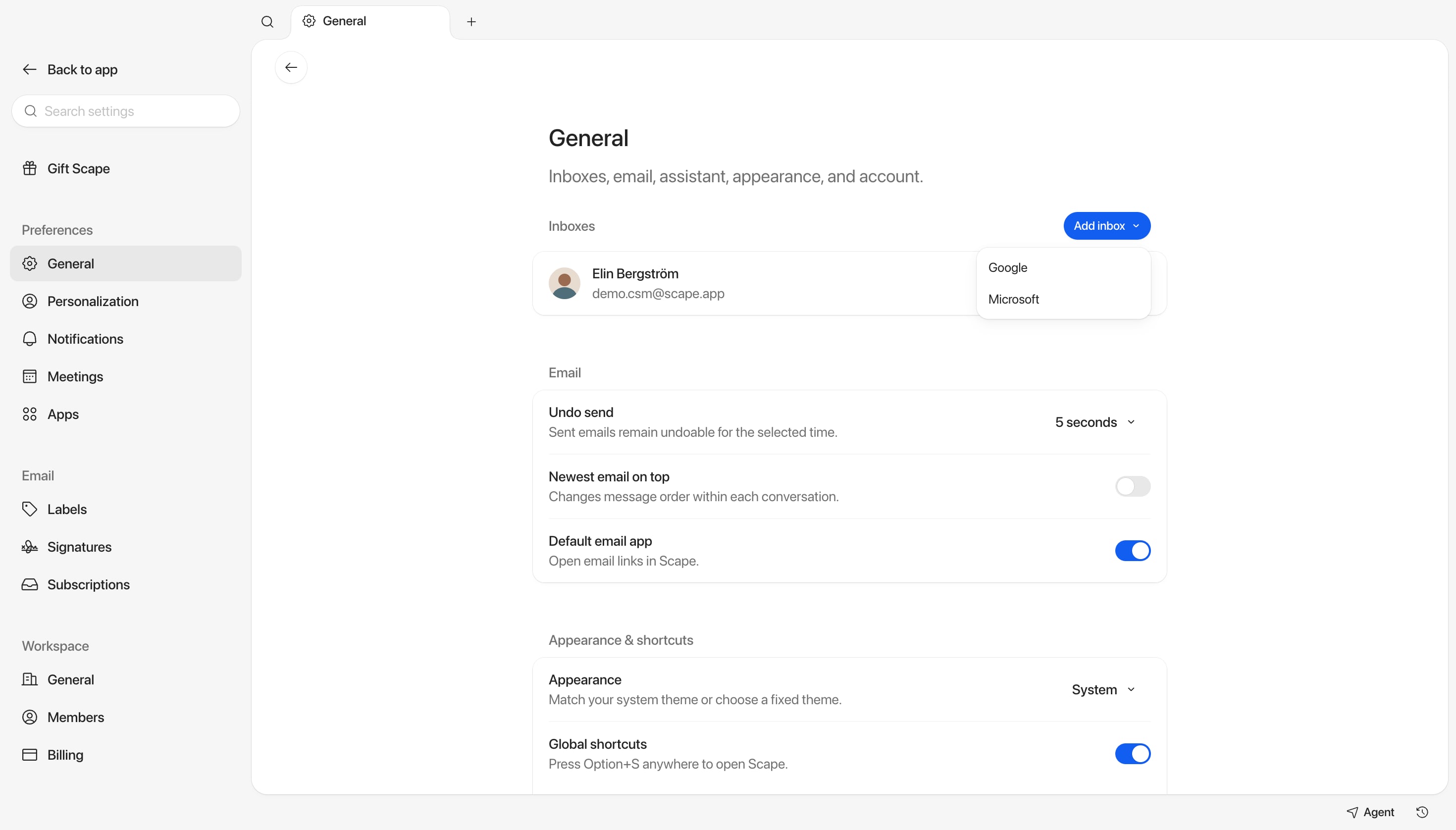
Open inbox settings
In Scape, go to Settings → General → Inboxes and choose Add inbox → Microsoft.
- 2
Sign in to Microsoft
Choose the Microsoft account you use for work and follow the sign-in and permission prompts. Your organization may require an administrator to approve the connection. You can send the Microsoft 365 admin guide to your organization’s administrator so they can review the requested access and approval steps.
- 3
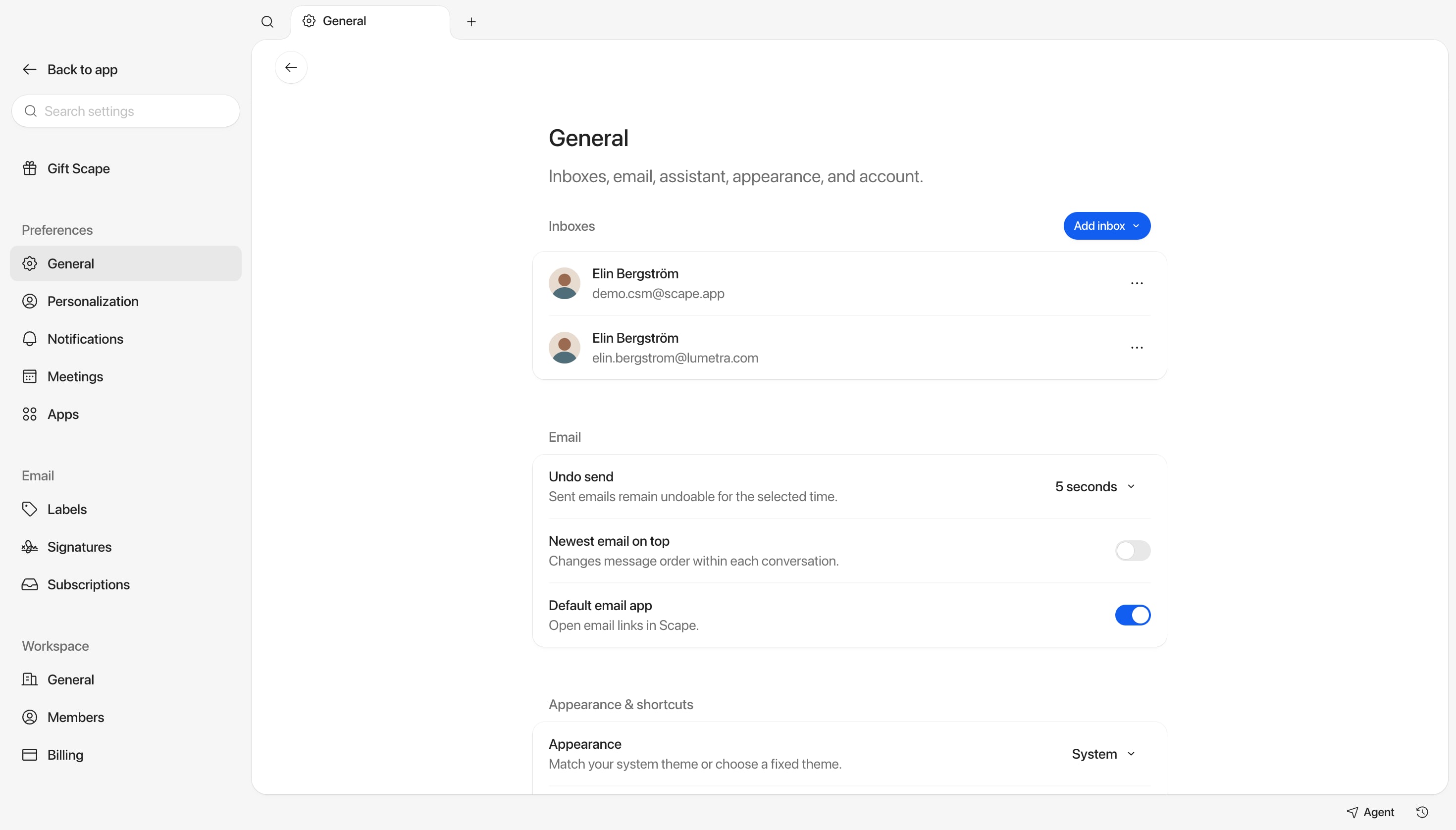
Check the connection
Return to Connected inboxes and confirm Outlook shows as connected. Open the Scape Agent and ask it to find a recent message.
How to use Outlook in Scape
Find and summarize email
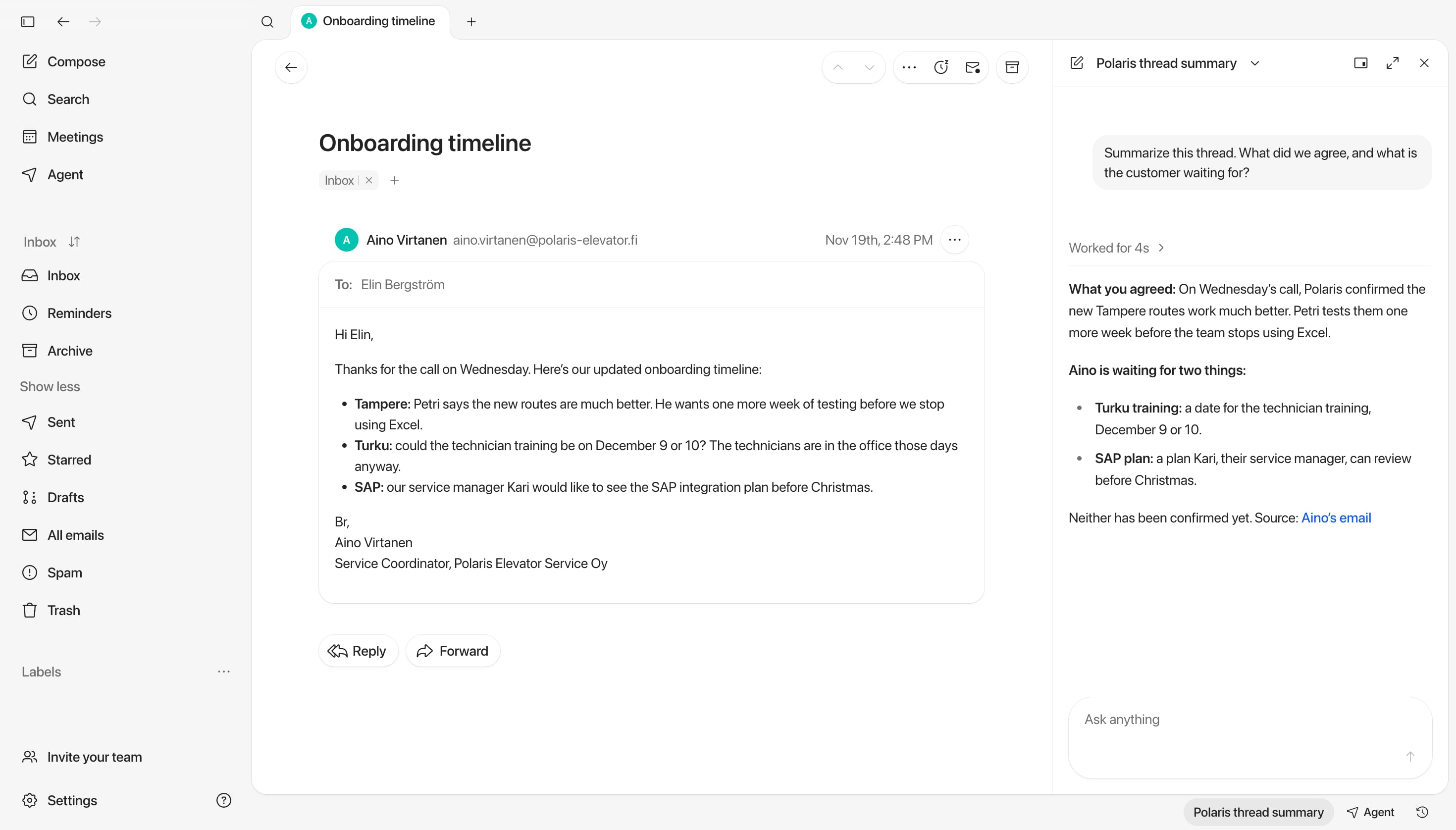
Ask Scape to search for a person, customer, topic, or detail you remember. It can summarize a thread to help you catch up before you reply.
Ask Scape
Summarize this thread. What did we agree, and what is the customer waiting for?
Organize your inbox
Use Scape to categorize incoming messages and make email that needs attention easier to spot. You can customize the organization to fit how you work.
Draft a reply
Ask Scape to prepare a reply using the conversation and connected context. Review the wording and facts, then send it when you’re ready.
Ask Scape
Draft a short reply confirming we received the updated proposal.
For shared mailbox steps, see How to add a shared mailbox in Outlook. To manage multiple accounts together, see Manage Gmail and Outlook in one inbox.
Related articles
Manage a busy Outlook inbox
Find what needs your attention and keep Outlook email easier to work through.
Read moreRead and reply from a shared Outlook inbox
Catch up on shared email and prepare a reply for review.
Read moreManage Gmail and Outlook in one inbox
Keep work email from Gmail and Outlook close together in Scape.
Read more
Frequent questions
Answers to common questions. For anything else, the Scape team reads every email.
Contact ScapeDoes Scape work with Outlook?
Yes. Scape works with Microsoft Outlook accounts. Work accounts may require administrator approval.
Manage a busy Outlook inbox You can send the admin guide to the person handling approval.
Can Scape send emails automatically?
No. Scape can prepare a draft, but you choose whether to send it.
Can I connect a shared Outlook mailbox?
Yes, when the connected Microsoft account has access to the shared mailbox. Sending from it also depends on the send permission granted in Microsoft 365.