Connect HubSpot to Scape with MCP
Connect HubSpot and use customer context alongside your inbox.
 Hilma BengtssonUpdated
How to connect HubSpot to Scape
Connect HubSpot through Scape’s built-in app directory, then use authorized CRM context while handling email.
- 1
Open Add an app
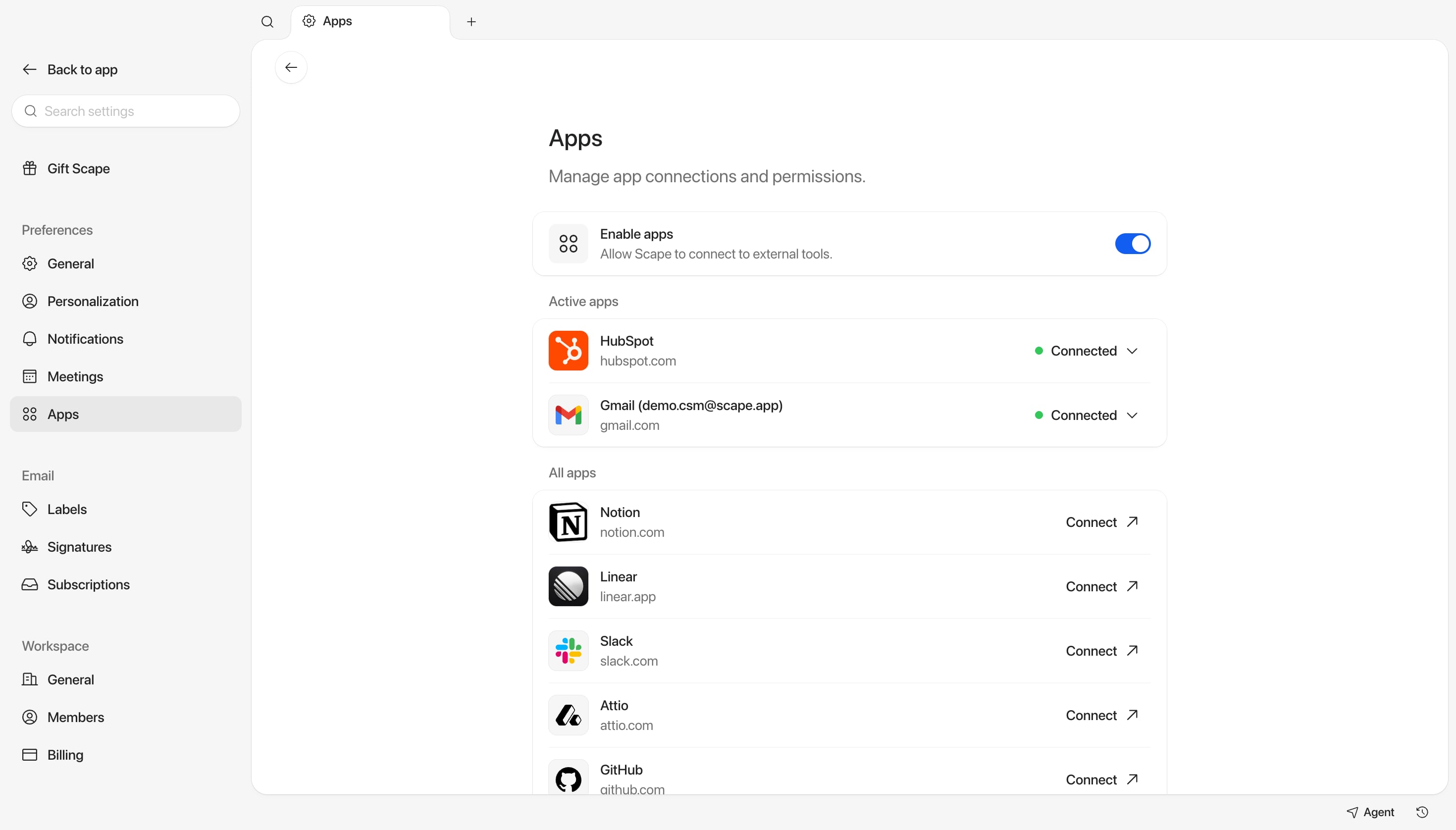
In Scape, go to Settings → Apps → Add an app and search for HubSpot.
- 2
Authorize HubSpot
Select HubSpot and choose Authorize if prompted. In the browser, sign in to HubSpot, select the correct account if asked, and approve the requested access. The standard connection uses Scape’s preconfigured OAuth app; you should not need to create an MCP Auth App or enter a client secret.
- 3
Check the connection
Return to Scape and confirm HubSpot shows as Connected.
Ask Scape
Find the HubSpot company record for Acme.
Compare the deal history with the latest email
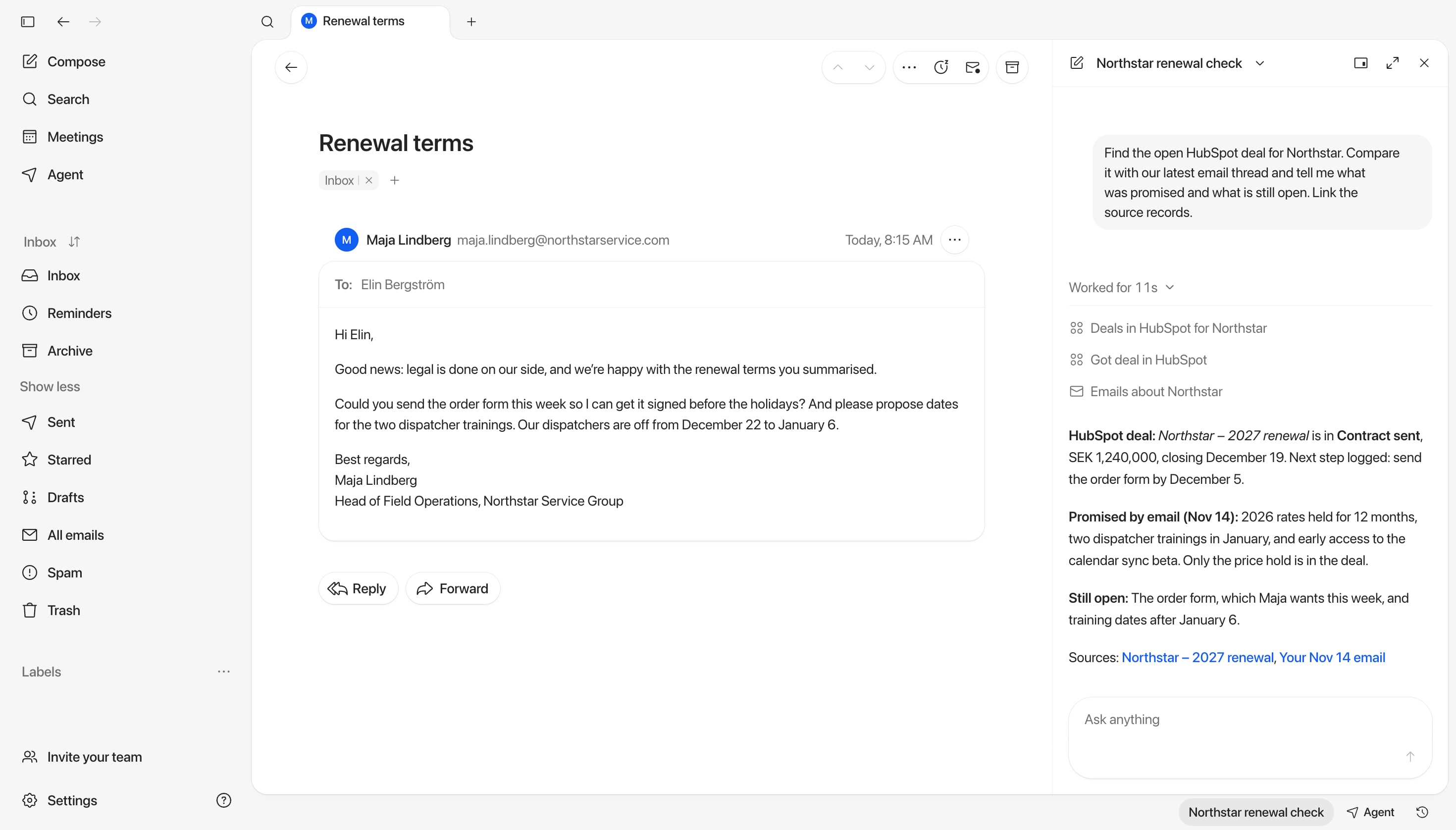
Scape can look up contacts, companies, deals, and tickets available to the connected HubSpot account. Where permissions allow, it can also read activity such as call notes, meetings, and tasks. Combine that history with the customer’s email so a meeting brief reflects both the CRM and the conversation.
Ask Scape
Find the open HubSpot deal for Northstar. Compare it with our latest email thread and tell me what was promised and what is still open. Link the source records.
A CRM stage alone does not explain every commitment. Check the messages behind a deadline or scope change, especially if the CRM and email appear to disagree. Available objects and activity depend on the connection’s permissions and HubSpot’s data settings.
Use a meeting transcript to prepare the customer email
After a call, ask Scape to use the transcript with the existing deal. The transcript captures what changed in the discussion; the deal provides account history and the next step already tracked in HubSpot.
Ask Scape
Draft a follow-up using this meeting transcript and the Northstar HubSpot deal. Include the agreed next steps and flag any date that still needs confirmation.
Review the email before sending. If the connection offers a supported CRM update, you can also ask Scape to propose a note on the existing deal. Check the note and destination before approval. HubSpot’s server supports record changes, notes, and tasks, but do not assume every write action is exposed by your Scape connection.
Prepare the next owner for a sales handoff
Use the deal to identify ownership and stage, then ask Scape to connect those details with the promises made by email or in meetings. A short brief should separate confirmed facts from questions for the next call.
Ask Scape
Summarize the Northstar deal stage, the customer’s main goals, and who owns the next step. Link to the HubSpot deal and the emails where the next steps were agreed.
Give the next owner the source links with the brief so they can check details without asking the previous owner to retell every conversation. See customer handoffs and drafting meeting follow-ups.
Related articles
Catch up on a customer account after a sales handoff
Get the account history, open questions, and next steps in one useful summary.
Read morePrepare for a meeting with AI
Find the context you need before your next customer call.
Read moreDraft follow-up emails from meeting notes
Start with what was agreed, then check the draft before it goes out.
Read more
Frequent questions
Answers to common questions. For anything else, the Scape team reads every email.
Contact ScapeDoes HubSpot connect through a custom MCP app?
No. Choose HubSpot from Scape’s built-in Add an app directory and authorize it through OAuth.
What can Scape find in HubSpot?
Scape can search for CRM information available to the connected account, such as contacts, companies, deals, tickets, and some activity.
Can Scape update HubSpot records?
Available actions depend on the connection and permissions. Review the proposed action in Scape before approving it.