Draft follow-up emails from meeting notes
Start with what was agreed, then check the draft before it goes out.
 Hilma BengtssonUpdated
Carry the meeting’s decisions into the next email
The meeting is over, but the work often starts afterward: confirming a decision, sharing a document, or making sure everyone knows the next step. Scape can use your meeting notes, transcript, and related email context to prepare a follow-up draft.
You choose what the message should cover, review the draft, and make any changes before sending. Scape does not send it on your behalf.
Scape’s built-in meeting recorder can capture supported calls locally, without a bot joining, and create the transcript used for the follow-up. Start from that record once it is available, then include the related email thread so the draft reflects both the call and any later changes. See how meeting recording fits into Scape.
Turn the meeting into a useful recap
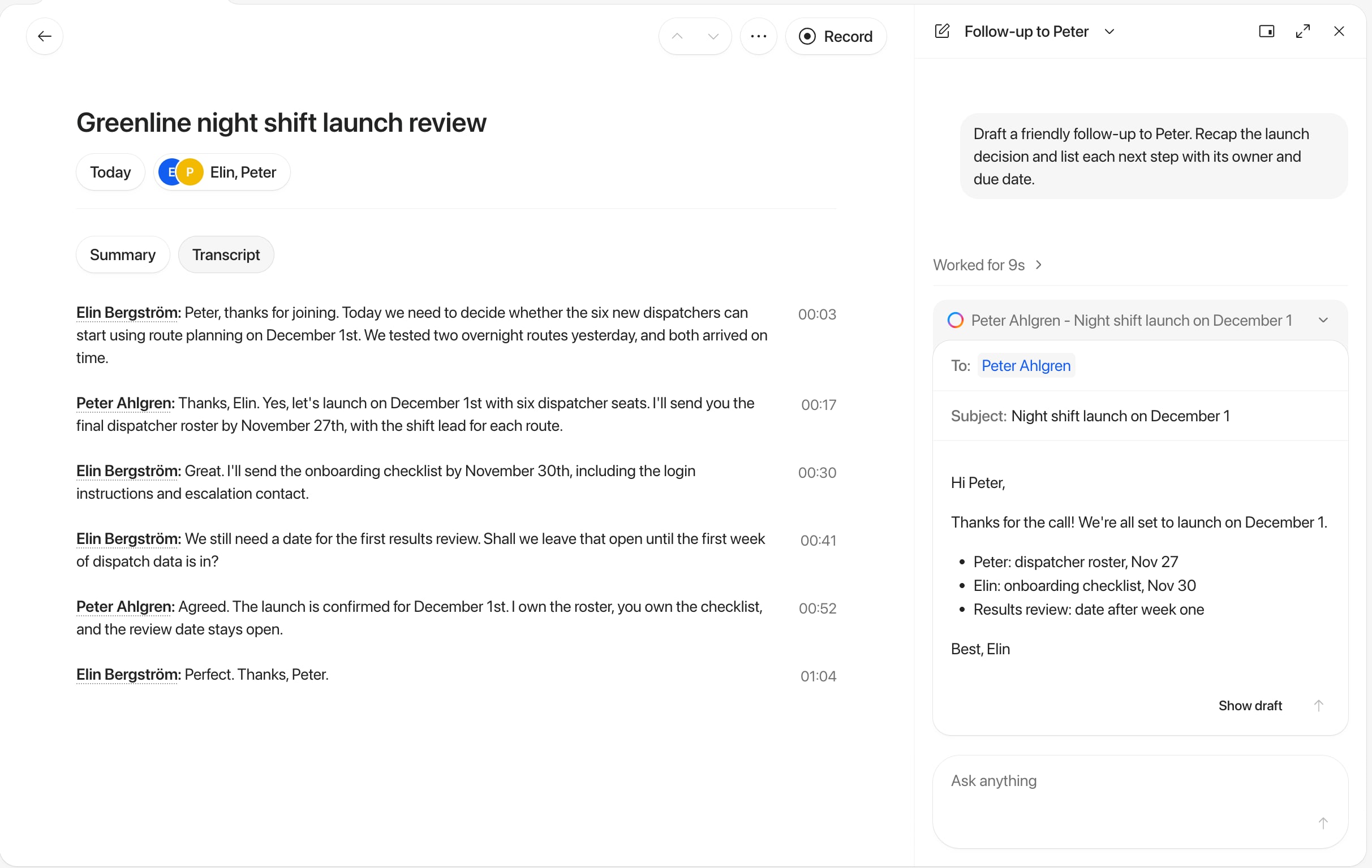
Ask Scape to draft a short recap with the decisions and next steps. Tell it who the email is for and whether you want a warm, direct, or formal tone.
Ask Scape
Draft a friendly follow-up to Peter. Recap the launch decision and list each next step with its owner and due date.
Scape can use a supported meeting transcript or notes along with relevant email context. Check the draft against the notes, especially names, dates, promises, and unresolved questions.
Write different kinds of follow-up
A client follow-up may confirm a decision and share a promised resource. A sales follow-up may reflect the customer’s priorities and suggest a next conversation. An internal recap may focus on owners and deadlines.
If the meeting did not end with a decision, say what remains open. You can ask Scape to phrase a question for the group instead of making it sound settled.
Ask Scape
Draft a follow-up that asks the client to confirm which option they prefer. Don’t imply they already chose one.
For examples and templates, see Follow-up email after a meeting: examples you can copy.
Keep the draft grounded in the conversation
AI can help shape a message, but it may miss a detail or phrase an idea too strongly. Check whether the action items were agreed, whether the dates are correct, and whether the draft includes only information meant for the recipients.
If the message needs a detail from another app, connect the service and ask Scape to look it up. Setup guides are available for Slack integration, Linear integration, and Notion integration.
Find the follow-up later
A clear subject line and a short recap make it easier to return to the conversation. If the topic comes up again, Scape can search your connected email and meeting context to help find what was decided.
Ask Scape
Find the follow-up email about the Northstar launch date and remind me what we agreed.
Related articles
Follow-up email after a meeting: examples you can copy
A few short paragraphs or bullet points are usually enough.
Read moreTurn meeting notes into action items
Turn meeting notes into clear owners, next steps, and dates.
Read moreFollow-up email after no response: examples you can copy
Copy and adapt follow-ups for unanswered work emails.
Read more
Frequent questions
Answers to common questions. For anything else, the Scape team reads every email.
Contact ScapeCan AI write a follow-up email from meeting notes?
Yes. Scape can use meeting notes or a transcript to prepare a draft, which you can edit and send yourself.
Does Scape send the follow-up automatically?
No. Scape prepares the draft for you to review; you choose whether and when to send it.
Can I include action items in a meeting follow-up?
Yes. Ask Scape to list each task with its agreed owner and deadline, then check the details before sending.
Can Scape use an earlier meeting transcript?
Scape can search available meeting context when you ask it to find a past discussion or decision.