How to connect Linear to your email
Look up issues, answer customers and create issues from email.
 Ludvig SvedbergUpdated
How to connect Linear to Scape
- 1
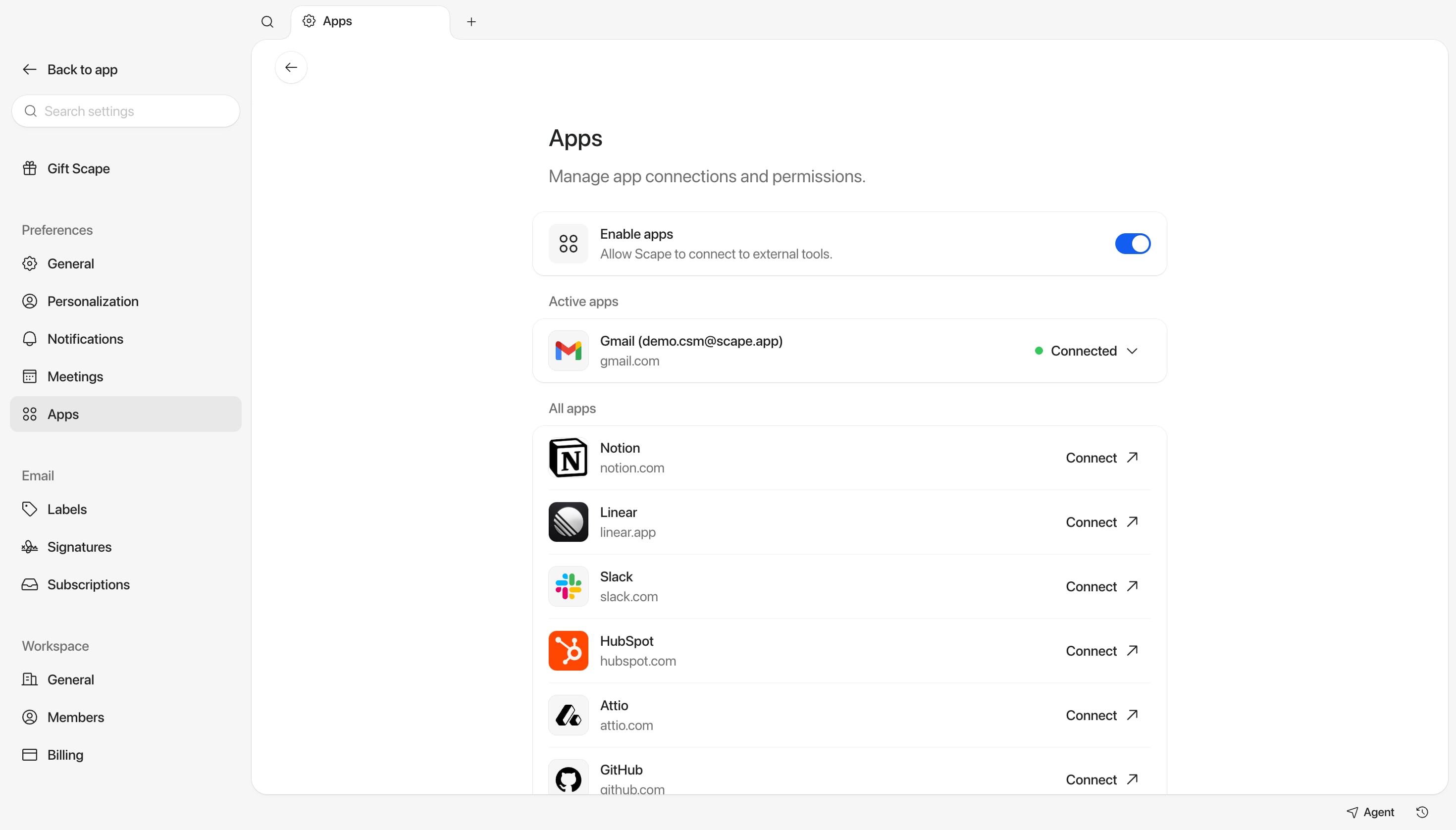
Open Apps in Settings
In Scape, go to Settings → Apps, select Linear and choose Connect.
- 2
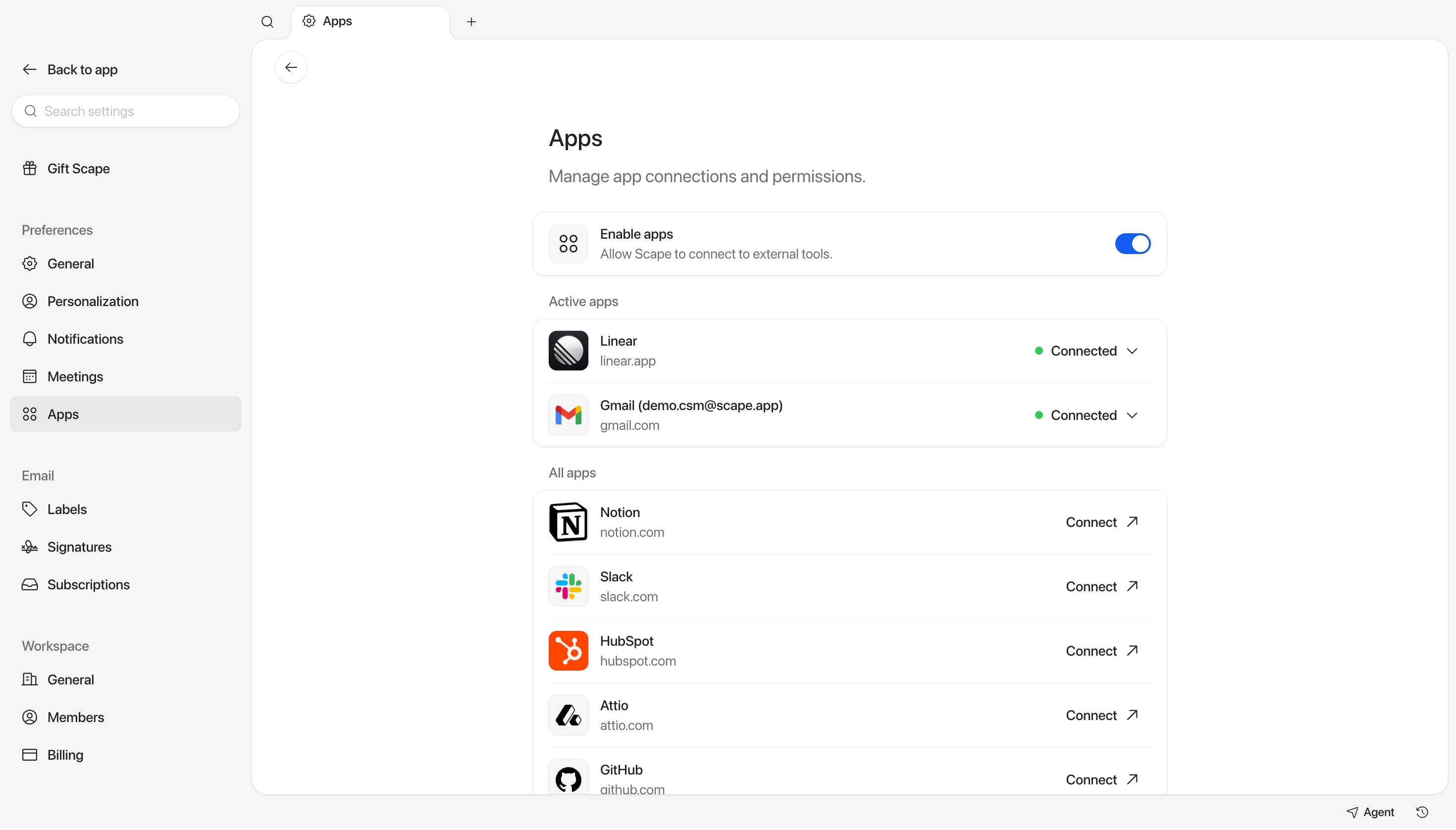
Sign in to Linear
Follow the prompts to give Scape access. If you use more than one Linear workspace, sign in to the one that holds your team’s issues, then check that Linear shows as connected in Apps.
- 3
Try the connection
Open the Scape Agent and ask: “Find my assigned Linear issues.”
Scape connects through Linear’s MCP server, which lets the Scape Agent use Linear’s functions, such as finding issues and preparing updates. If you ask for something in Linear before connecting it, the agent offers to add the connection.
Check a Linear issue before replying to a customer
A customer asks whether the bug they reported has been fixed.
Ask Scape
Find the issue for this customer’s export bug. What’s its current status?
The agent can look up issues, projects, statuses and assignees. Include the customer name, the affected feature or an issue identifier if you have one. If several issues look similar, check the description before treating one as the customer’s report.
Ask Scape
Draft a reply explaining the issue’s current status. Include a fix date only if one is recorded in Linear.
Review the draft before sending, especially any dates or commitments.
Create a Linear issue from an email
Ask Scape
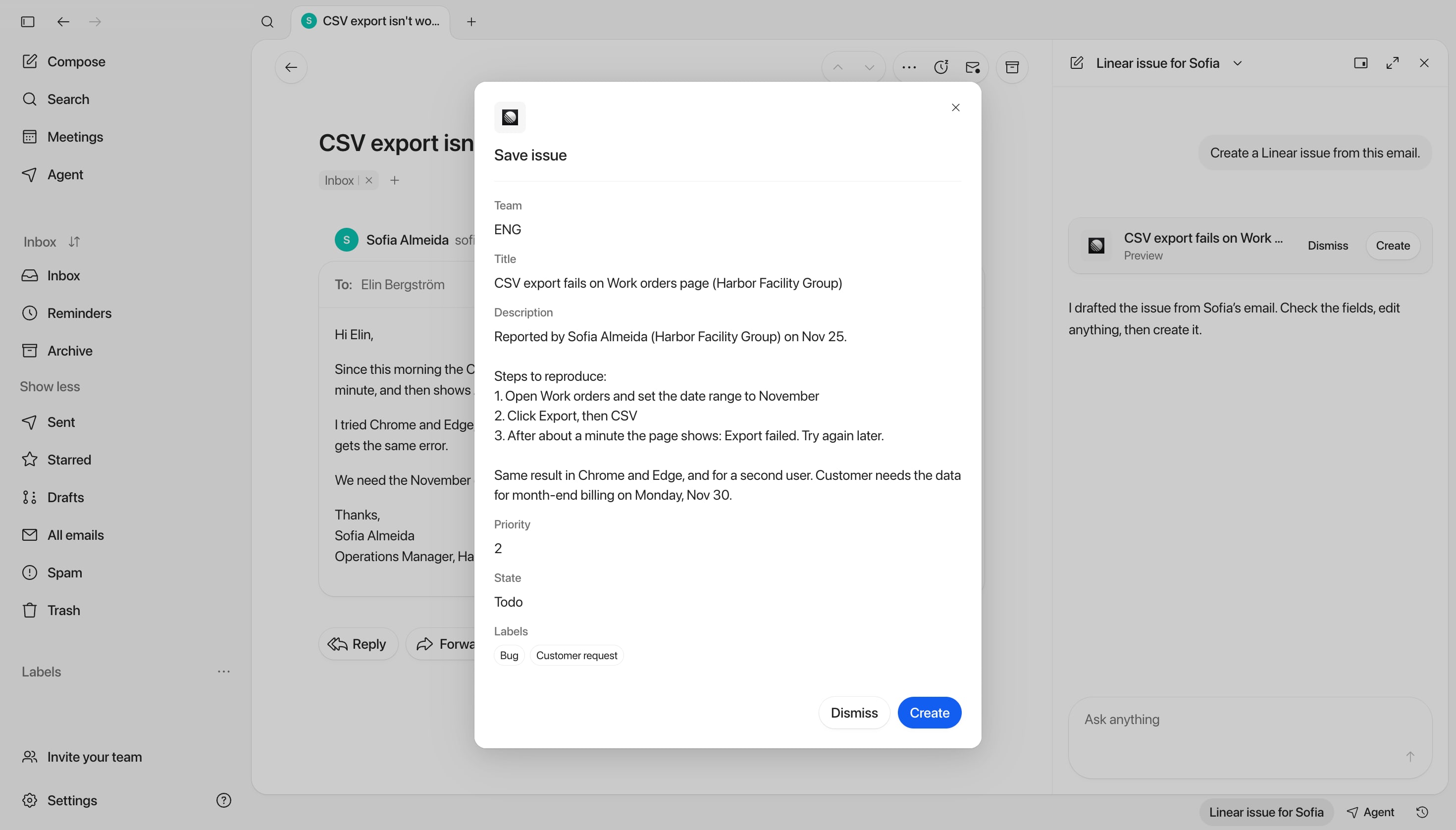
Create a Linear issue from this email.
Scape prepares a title and description from the conversation and can suggest details such as the team and priority. A review card appears in the chat: edit the fields, then choose Approve or Reject. The issue is created only after you approve it.
Update Linear issues from your inbox
Ask Scape
Add a comment to this issue summarizing the customer’s latest report.
Ask Scape
Change this issue’s status to In Progress.
Scape can turn the customer’s latest email into a comment on the relevant issue, or prepare a status change. Include the issue identifier when you have it so the update reaches the right ticket. Every change needs your approval.
Edit a Linear ticket inside Scape
Review the proposed issue or update in Scape before it reaches Linear. The review card shows fields such as the title, description, status, priority, assignee, project, and labels. You can edit the available fields directly in the card.
For example, when a customer sends more detail about an export bug, ask Scape to prepare an update to the issue. Check the description against the email, clarify the steps to reproduce, and adjust the priority if needed.
Choose Approve when the details are correct. Choose Reject to cancel the proposed change. You can handle the review alongside the customer conversation without opening Linear to edit those fields.
Related articles
Team email management for customer-facing teams
Keep customer context close while your team shares the work of replying.
Read moreTurn meeting notes into action items
Turn meeting notes into clear owners, next steps, and dates.
Read moreGitHub integration
Look up repositories, code changes, issues, and pull requests from Scape.
Read more
Frequent questions
Answers to common questions. For anything else, the Scape team reads every email.
Contact ScapeHow does Scape connect to Linear?
Through Linear’s MCP server, which lets the Scape Agent find issues and prepare updates. Connect it under Settings → Apps.
Can Scape change Linear issues without asking?
No. Creating or changing anything in Linear needs your approval in a review card.
Can Scape add email attachments to a Linear issue?
No. Add screenshots and files directly in Linear.
Do email threads and Linear issues stay in sync?
No. Ask Scape to check the issue again when you need the latest status.