How to filter emails in Gmail
Create Gmail filters for the messages you want to organize.
 Hilma BengtssonUpdated
Create a Gmail filter from a message
Gmail filters can label, archive, forward, or delete email based on rules you choose. They’re handy for recurring messages, as long as the filter is narrow enough to catch the right mail.
- 1
Open Gmail and select a message that matches the email you want to filter.
- 2
Select the three-dot menu and choose Filter messages like this.
- 3
Check the sender, subject, or other details Gmail filled in.
- 4
Choose Create filter.
- 5
Select what Gmail should do, such as apply a label, archive, star, or forward the message.
- 6
Select Create filter to save it.
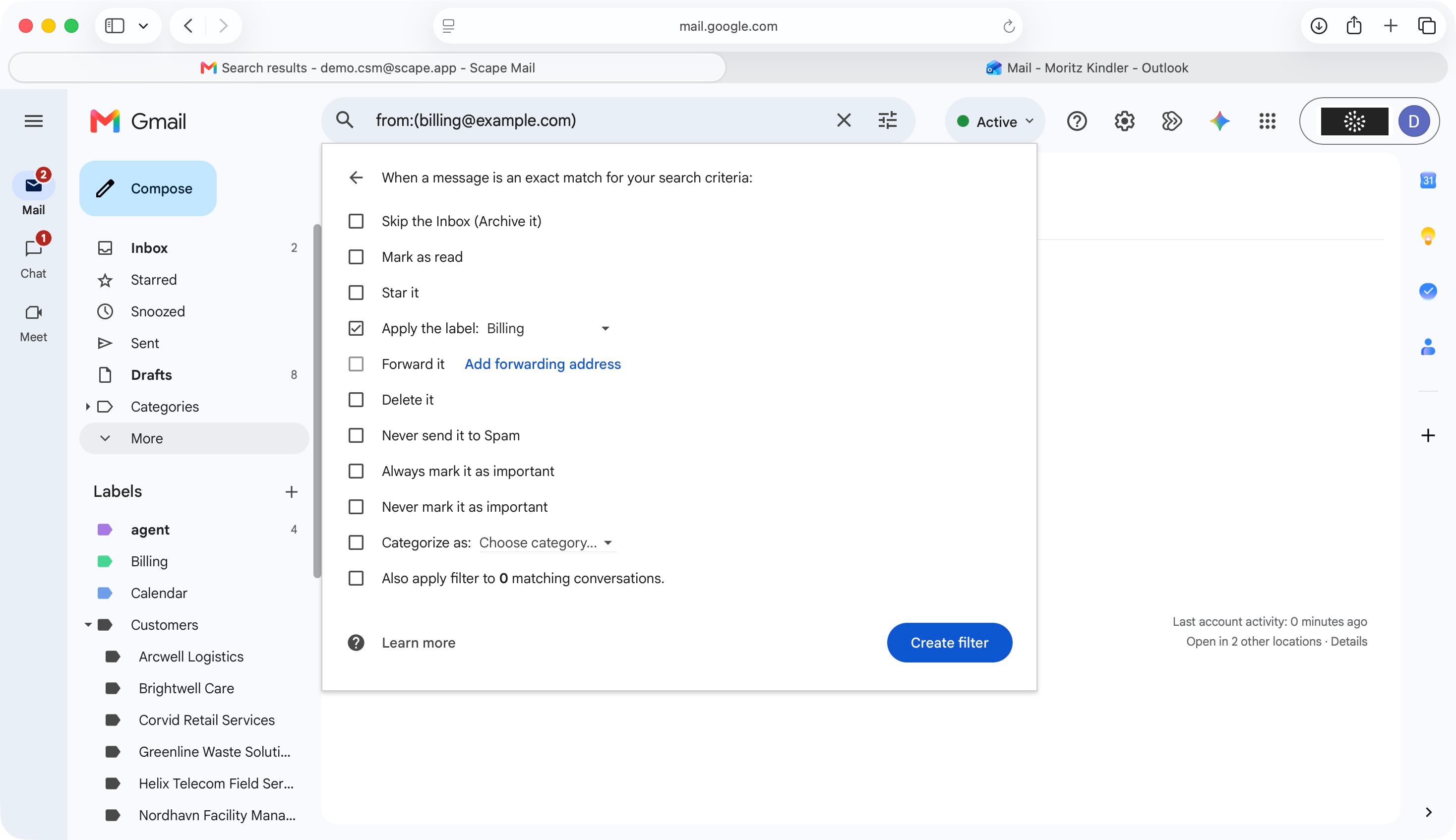
Create a filter from Gmail search
- 1
Select the Show search options icon in the search bar.
- 2
Enter details such as the sender, recipient, subject, or words included in the message.
- 3
Choose Create filter.
- 4
Select the action and save.
You can also choose to apply the filter to matching messages that are already in your inbox. Review the search results first if you’re applying it to older mail.
Choose filter conditions carefully
Use a sender address for newsletters or a precise phrase for recurring notifications. Avoid broad terms that may appear in important customer email. If you filter by a domain, remember that it may include many different senders.
Find and edit your filters
In Gmail, open Settings → See all settings → Filters and Blocked Addresses. From there, you can edit or delete existing filters. If a message was filtered by mistake, check All Mail, Spam, and the label you selected.
Filter vs. block
A filter organizes messages based on conditions you set. Blocking sends future messages from a specific sender to Spam. Use a filter for mail you might still need to review, such as a newsletter or report; block or report unwanted messages when appropriate.
For Outlook instructions, see How to filter emails in Outlook without missing important messages.
Set up automatic labels by asking Scape
You can build a rule in Gmail, or describe the result you want to Scape. Scape can create a label and use your instructions to decide which messages belong in it. That is useful when the distinction is about the kind of message, such as a sales pitch versus a customer request, rather than one exact sender address.
Ask Scape
Create a Newsletters label for subscriptions and product updates. Automatically label matching emails, but keep customer questions and invoices out of it.
Check the proposed label and a few matching messages before adding auto-archive. A label groups messages; auto-archive also removes matching email from the main inbox. Those are separate choices. Keep a category visible while you check that Scape understands what belongs there.
Ask Scape
Turn on auto-archive for Newsletters. Keep the label in my sidebar so I can read those messages later.
Archived email remains available under its label and in search. If something important is included, refine the instructions or exclusions before leaving the setup running. Scape’s organization is managed in Scape; check Gmail's own rules separately if you already use them.
See how to organize your inbox for a complete label setup, or email triage for deciding which messages need a reply.
Related articles
How to organize your email inbox
Build a simple system for labels, filters, and daily email.
Read moreHow to stop spam emails in Gmail and Outlook
Report spam and manage unwanted mail in Gmail and Outlook.
Read moreGmail integration
Connect Gmail to search email, organize messages, and prepare replies in Scape.
Read more
Frequent questions
Answers to common questions. For anything else, the Scape team reads every email.
Contact ScapeHow do I automatically move emails to a label in Gmail?
Create a filter with the sender or subject condition, choose Apply the label, select a label, then save.
Can Gmail filters apply to old emails?
Yes. When creating a filter, select the option to apply it to matching conversations already in your inbox if you want to organize existing mail too.
What is the difference between a Gmail filter and blocking someone?
A filter applies actions to messages that match criteria you choose. Blocking sends future messages from one sender to Spam.
Why is a Gmail filter not working?
Check that the condition matches the message exactly, that the filter is enabled, and that another filter isn’t changing its result.