Email triage for a busy work inbox
See what needs a reply, what can wait, and what you can come back to later.
 Hilma BengtssonUpdated
Decide what needs attention before you start replying
When your inbox fills up, it can be hard to tell which message needs attention first. Email triage is the process of sorting messages by what they need from you, so urgent requests don’t get buried under updates, receipts, and newsletters.
Scape can organize incoming email into categories and help surface messages that need a reply or another action. You can customize the organization to match your work, then ask Scape to find messages by sender, topic, or request.
Find messages that need your attention
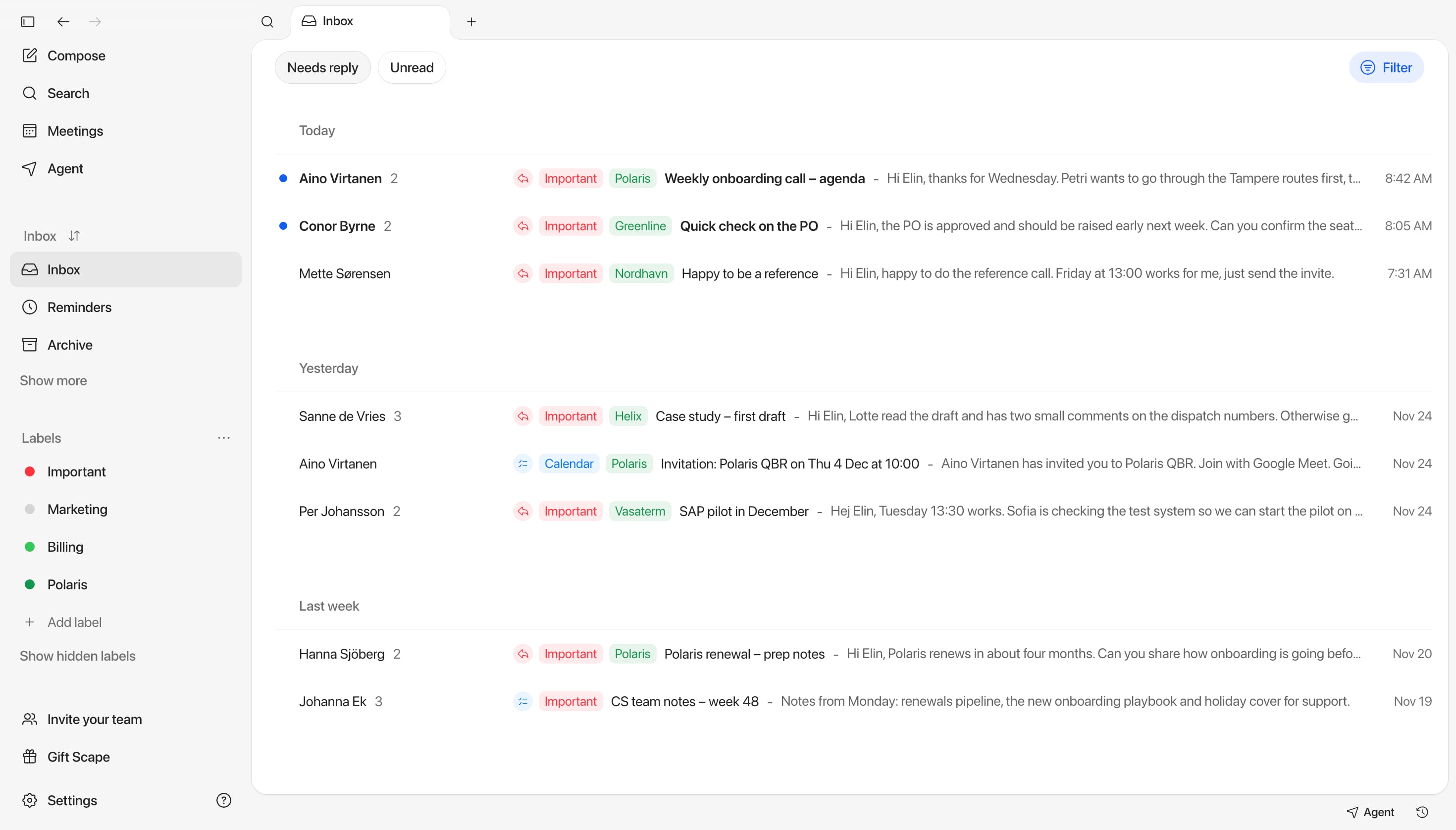
Ask Scape to identify messages that contain a question, a deadline, or a request for you. You can narrow the search to a person, customer, project, or time period.
Ask Scape
Find unread emails from customers that need a reply today.
Review the results and open the original message when the request or deadline matters. If the inbox is noisy, start with a smaller group, such as one customer or one day.
Set up categories that fit your work
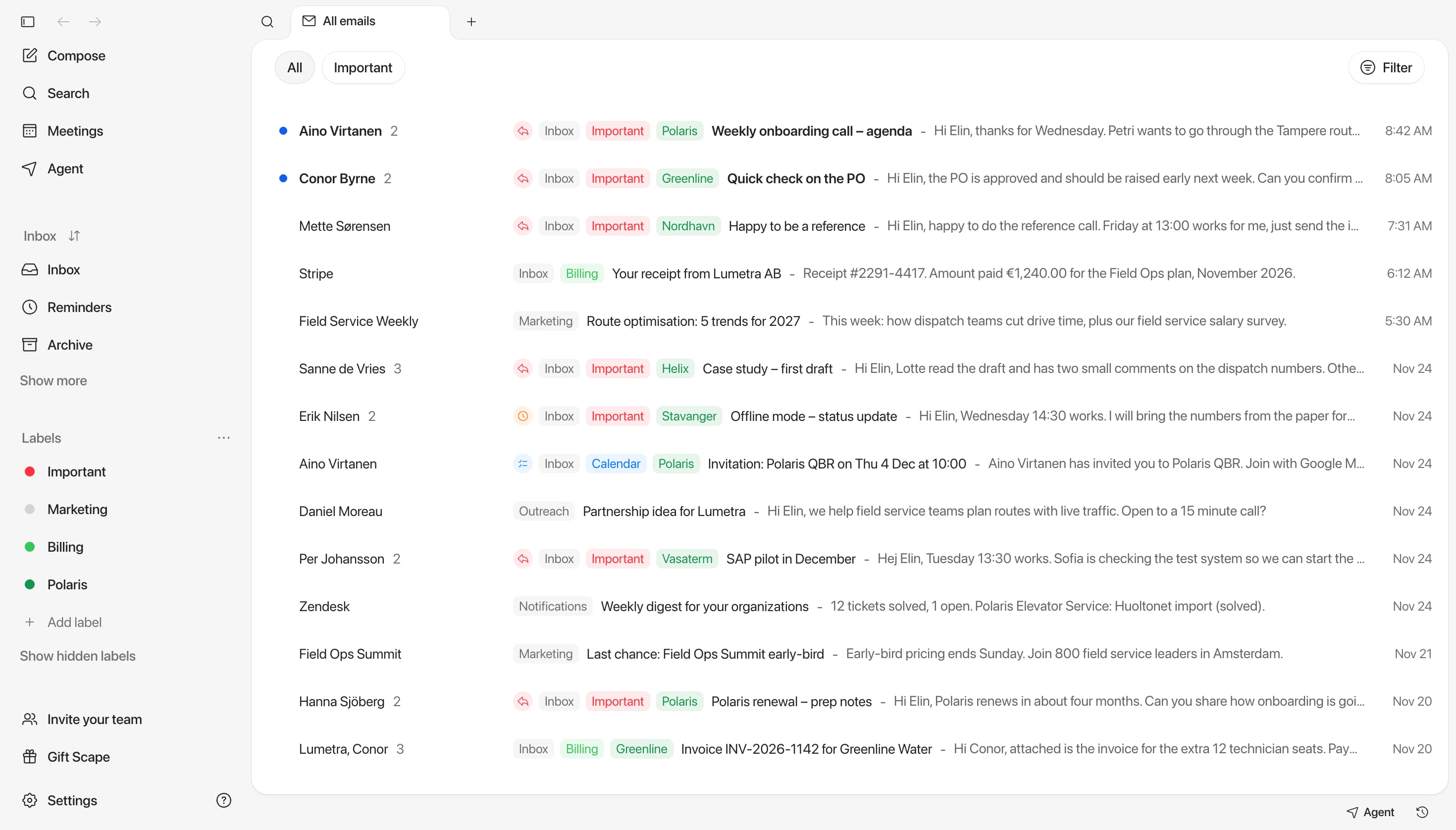
Different people need different inbox categories. You might separate customer questions, invoices, internal updates, project notifications, and newsletters. Scape can organize messages using labels and rules you customize, so useful email is easier to spot.
For example, you can ask Scape to group receipts under a label or keep product notifications out of your main view. Check the category before setting up automatic archiving, especially for messages that may contain customer requests.
Read more about How to organize your email inbox.
Catch up on a busy inbox
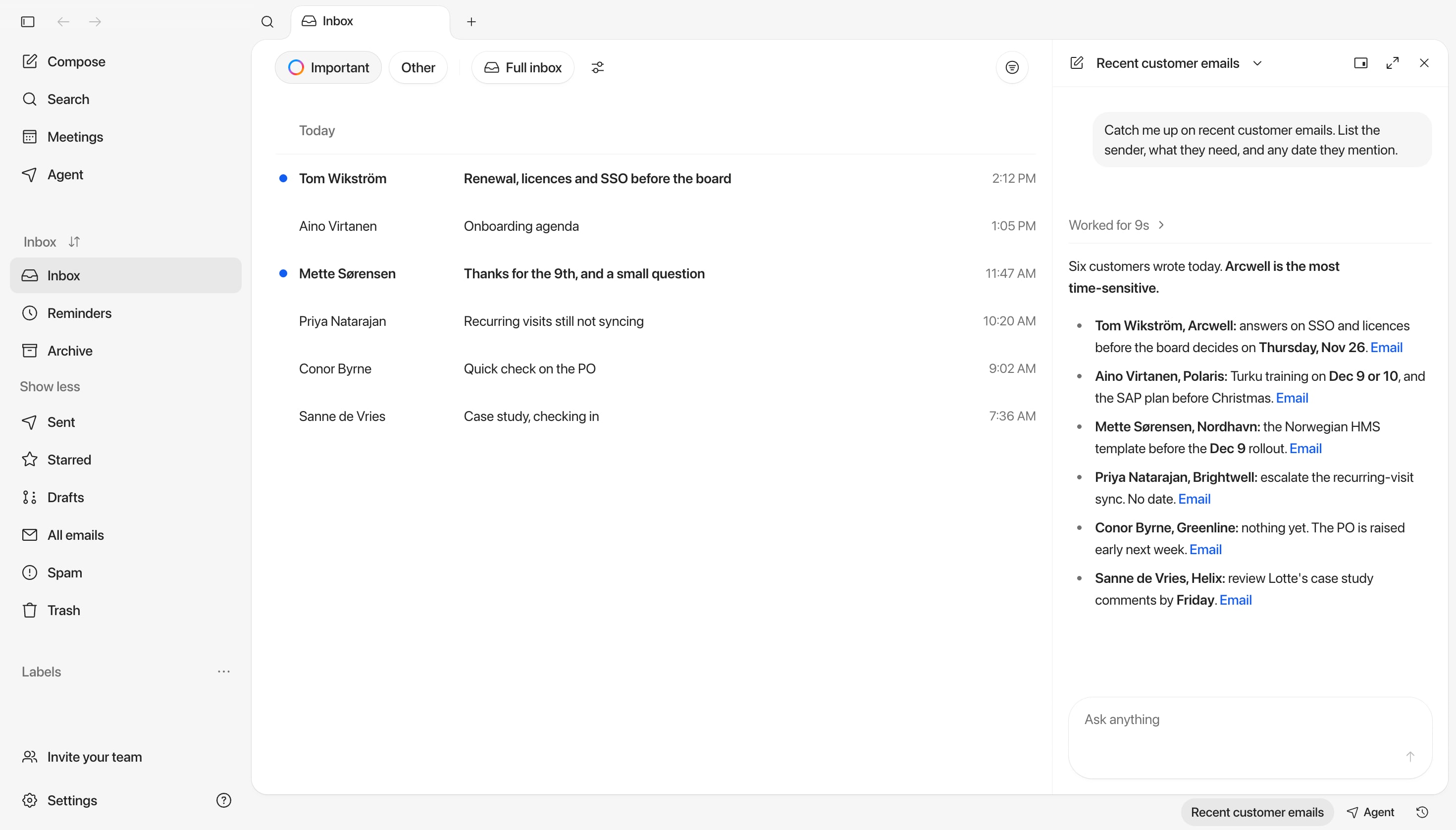
If you’ve been away, ask Scape for a summary of the messages that came in and a list of anything that needs action. You can ask it to focus on one sender or project instead of summarizing everything.
Ask Scape
Catch me up on recent customer emails. List the sender, what they need, and any date they mention.
A summary can help you get oriented, but check the source message before making a commitment or acting on a sensitive request.
Draft replies after triage
Once you know which messages need an answer, ask Scape to draft a reply using the email thread and connected context. The draft is yours to review and edit. Scape does not send it until you choose to send it.
Ask Scape
Draft a brief reply confirming we received this request and asking which date works for delivery.
For more practical ways to keep a work inbox manageable, see Email management tips for a busy work inbox.
Related articles
How to organize your email inbox
Build a simple system for labels, filters, and daily email.
Read moreManage a busy Outlook inbox
Find what needs your attention and keep Outlook email easier to work through.
Read moreEmail workflow automation for recurring inbox tasks
Schedule useful checks without repeating the same search every week.
Read more
Frequent questions
Answers to common questions. For anything else, the Scape team reads every email.
Contact ScapeWhat is email triage?
Email triage means sorting messages by urgency or next step, so you can decide what to answer, delegate, file, or leave for later.
Can AI sort emails automatically?
Scape can organize incoming messages based on the categories and preferences you set. Review your labels and rules so important mail stays easy to find.
Can Scape reply to emails automatically?
Scape can prepare a draft, but you review and send it yourself.
How can I find an important email in a busy inbox?
Ask Scape to search by the sender, customer, project, topic, or a phrase you remember from the message.
What is an email thread? How to catch up on long conversations