How to organize your email inbox
Build a simple system for labels, filters, and daily email.
 Hilma BengtssonUpdated
Start with a simple inbox system
When your inbox is busy, every message can start to feel equally urgent. A few thoughtful habits can make it easier to see what needs a reply, find old conversations, and keep routine email from taking over your day.
Before moving everything into folders, decide what you want your inbox to show. For many people, the inbox works best as a place for new messages that still need attention. Messages you’ve answered can be archived, while tasks that need more time get a reminder or a separate task.
You don’t have to reach inbox zero. The goal is to know what needs action and where to find the rest.
Use a few clear labels or folders
Start with a small set of categories, such as:
- Action needed for messages you need to answer or decide on.
- Waiting for conversations where someone else needs to reply.
- Reference for information you may need again.
- Newsletters for updates you read when you have time.
Use names that make sense to you. If you create too many folders, filing can take longer than finding the message later.
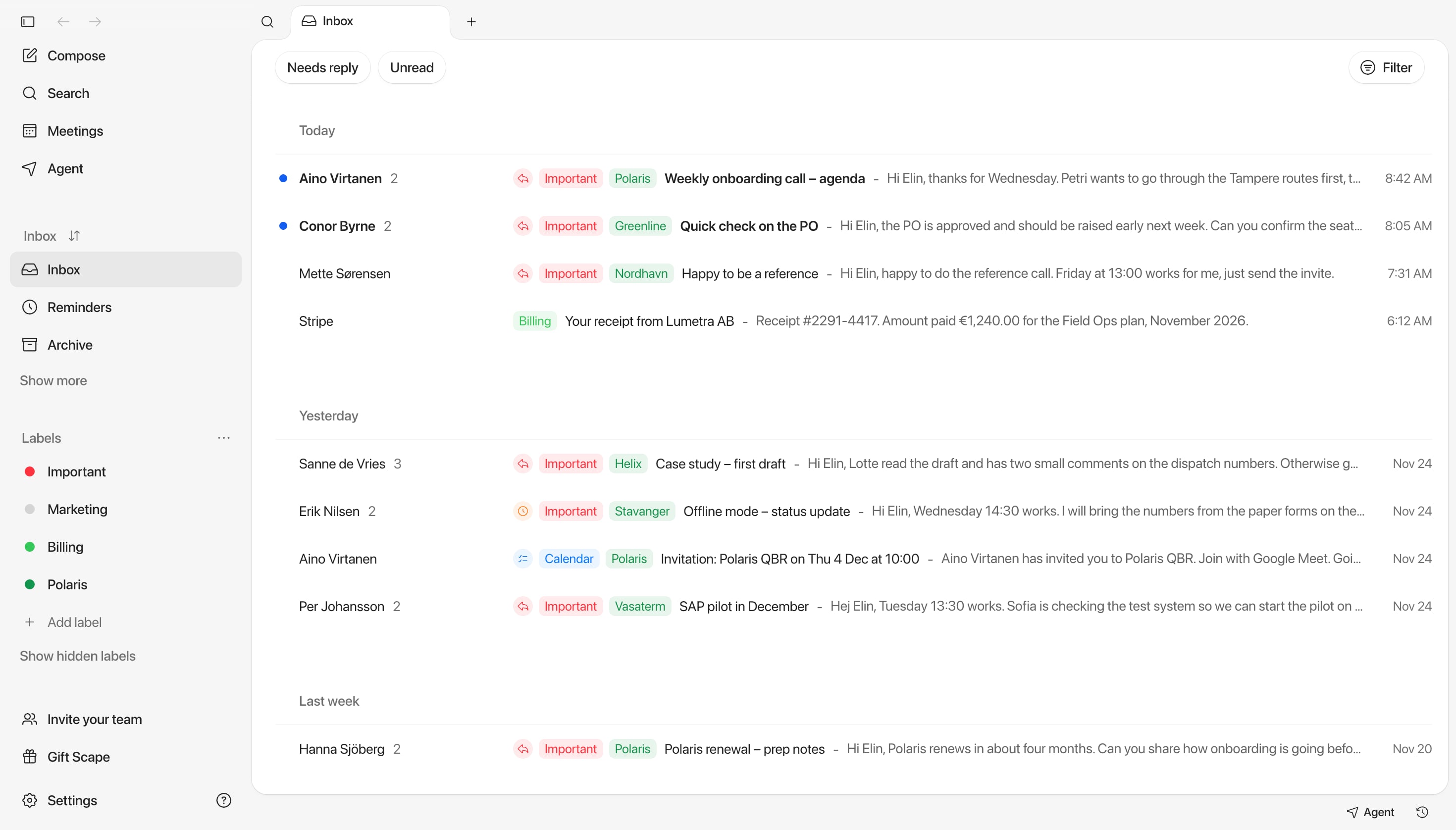
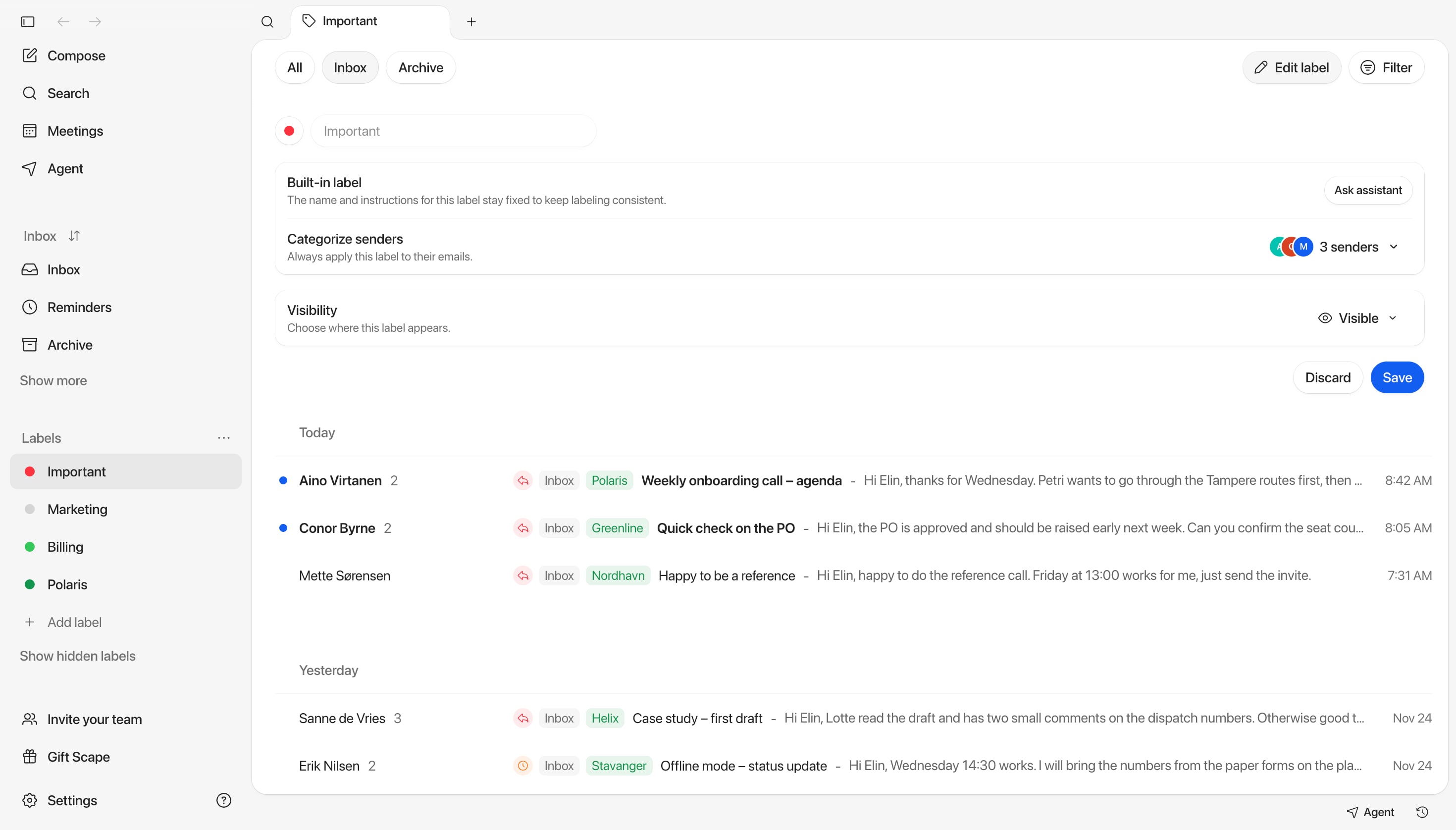
Let Scape label and sort incoming email
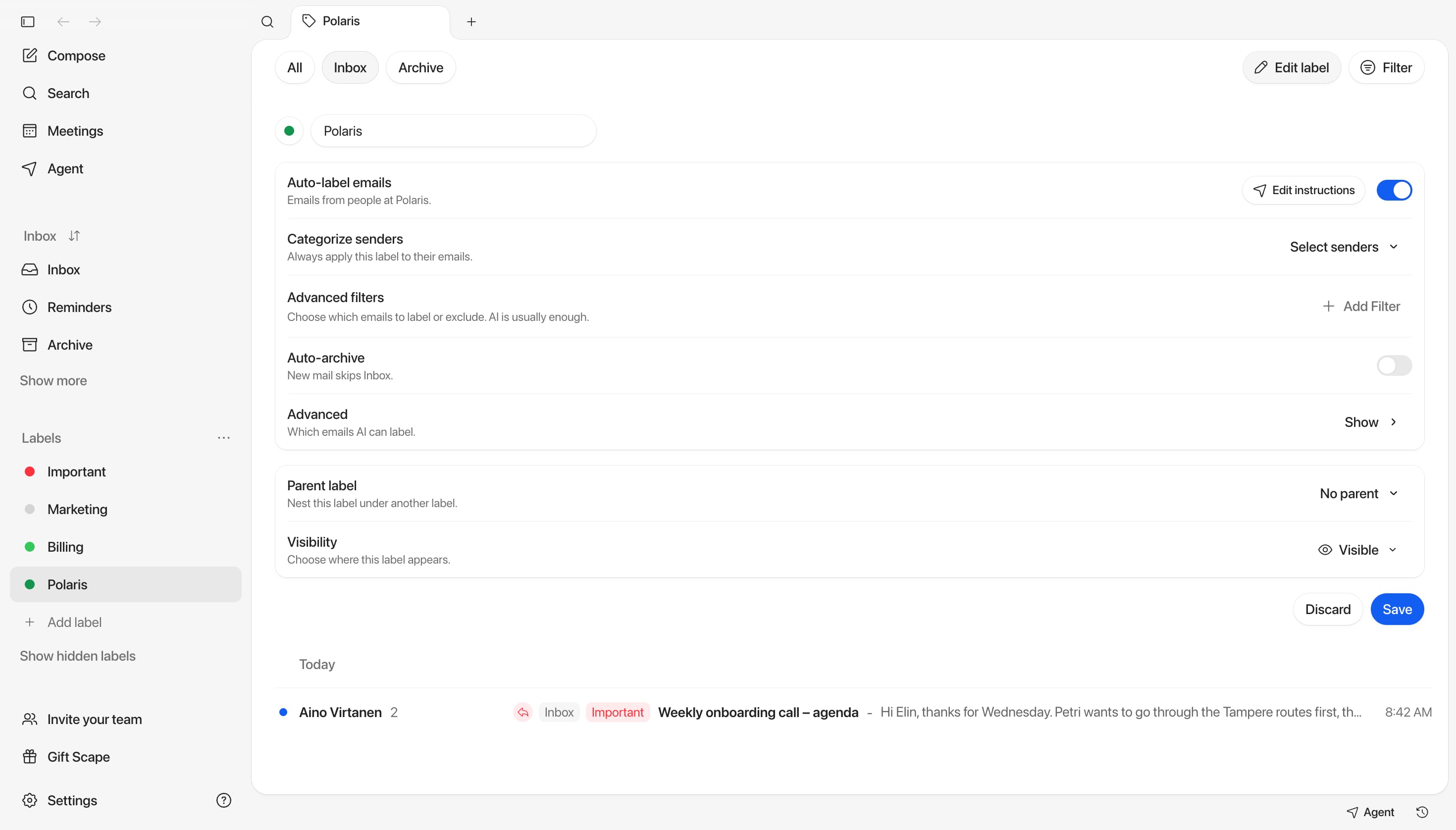
A useful label describes both what belongs in it and what should stay out. Scape can create labels and automatically apply them using your instructions, so you do not have to manually file the same kind of message every day.
Ask Scape
Create a Product updates label for automated updates from tools I use. Exclude billing issues, account security alerts, and messages from a person asking for a reply.
Review the proposed settings, then check a few matching messages. Adjust broad instructions if they catch the wrong mail. For example, “all messages from this company” could include both a newsletter and a customer’s urgent request.
Keep the label, clear the inbox
Once the category is reliable, turn on auto-archive for that label if the messages do not need your immediate attention. Auto-archive removes them from the inbox view while keeping them available under the label and in search. It does not permanently delete them.
Ask Scape
Auto-archive messages labelled Product updates, and keep the label visible in the sidebar.
Leave customer questions, payment requests, and other actionable messages in view. Revisit the label when your work changes or when a message ends up somewhere unexpected. For provider-specific setup, see Gmail filters and Outlook rules.
Set up rules for repeat email
Filters and rules can label or move predictable messages such as receipts, newsletters, or system notifications. Keep conditions specific and check the destination folder from time to time. A rule should save you effort without hiding a customer request or deadline.
See How to filter emails in Gmail and How to filter emails in Outlook without missing important messages.
Make it easy to find old messages
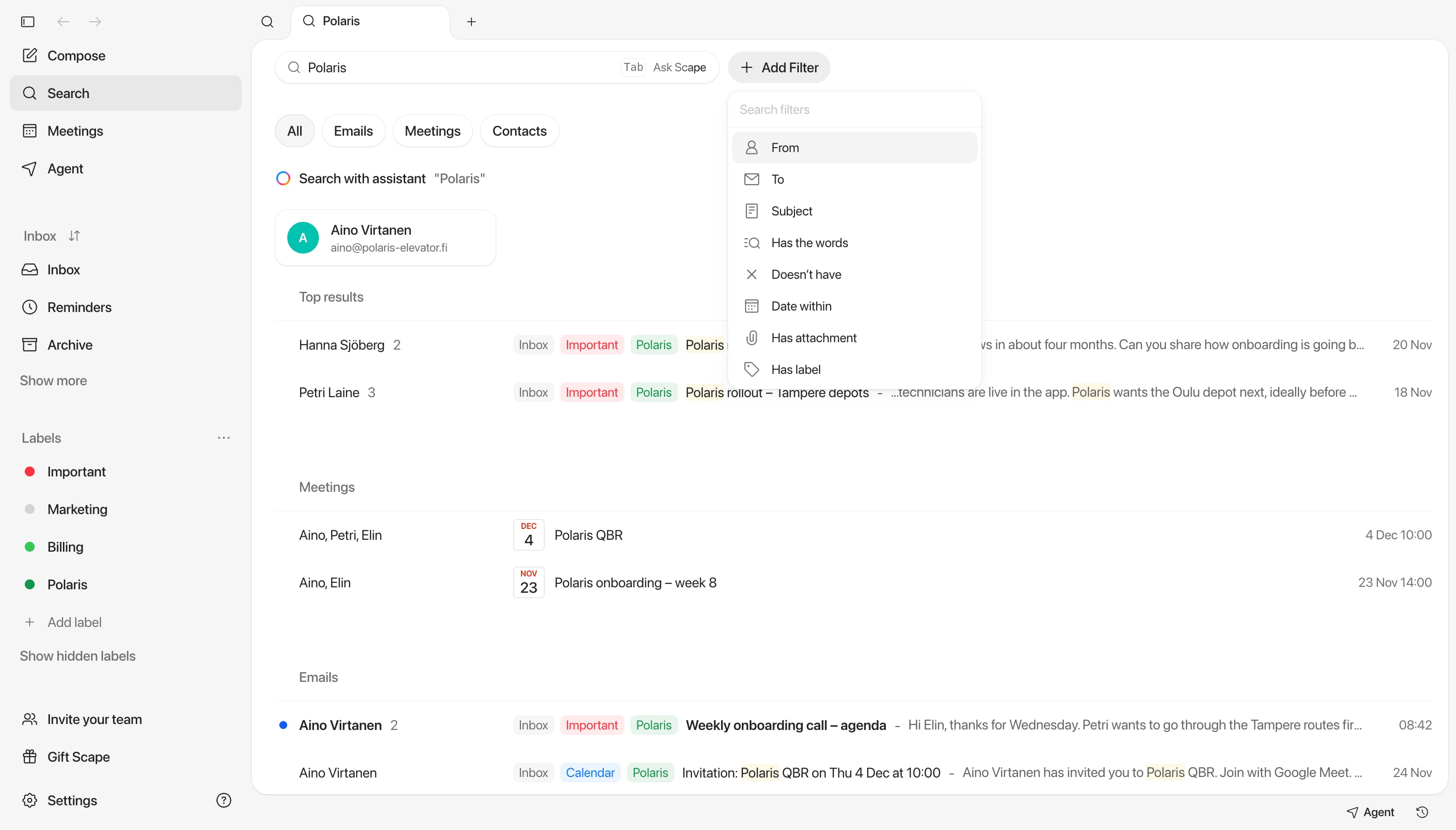
Use search instead of relying on memory or folder names alone. Try a sender, company, subject phrase, date range, or a word from the message. If you can’t remember the exact wording, search for a related name or project.
Scape can search connected email and help summarize a long thread. You can ask it to find a past decision or a message about a specific customer.
Create a quick daily routine
Set aside time to review new email, choose the next action, and clear away messages that no longer need to stay in the inbox. If you need to reply later, mark the message or create a reminder rather than trusting yourself to remember.
Use AI without handing over the decision
Scape can help categorize messages, find context, and prepare a reply. Review how messages are organized, check important details, and edit the draft before you send it. That way, AI helps with the first pass while you stay in control of the final decision.
Related articles
Email triage for a busy work inbox
See what needs a reply, what can wait, and what you can come back to later.
Read moreHow to filter emails in Gmail
Create Gmail filters for the messages you want to organize.
Read moreHow to filter emails in Outlook without missing important messages
Create Outlook rules without hiding important messages.
Read more
Frequent questions
Answers to common questions. For anything else, the Scape team reads every email.
Contact ScapeWhat is the best way to organize an email inbox?
Use a small number of folders or labels, separate messages by next action, and create narrow filters for predictable email. Adjust the system when you notice something is hard to find.
How many folders should I have?
There’s no required number. Start with a few categories you’ll actually use, then add a folder only when it solves a real problem.
Should I archive or delete emails?
Archive messages you may need later but don’t need in the inbox. Delete email you no longer need, and use spam or junk reporting for unwanted or suspicious messages.
Can AI organize my inbox?
Scape can categorize and organize incoming email based on the preferences you set. Review the categories and adjust them to fit your work.