How to filter emails in Outlook without missing important messages
Create Outlook rules without hiding important messages.
 Hilma BengtssonUpdated
How to filter emails in Outlook
Outlook rules can clear routine email from your inbox, but the best filter is one that still lets you spot the messages you need to act on.
If you get the same kind of email every day, it can help to send those messages to a folder or mark them automatically. Outlook rules can do that for you. The trick is to start with a clear rule and make sure it doesn’t sweep up messages you still need to see.
The exact buttons depend on whether you use Outlook on the web, new Outlook for Windows, or classic Outlook. The steps below focus on Outlook on the web and new Outlook, with a note for classic Outlook where the menu is different.
Decide what the rule should catch
Before opening Settings, pick one specific type of email. For example, you might want newsletters from one sender to go to a reading folder, or messages with a certain subject to receive a label or category.
Be careful with broad rules such as “all email from this company” if that sender also sends urgent customer messages. A narrow rule is easier to test and less likely to hide something important.
Create a rule in Outlook on the web or new Outlook
- 1
Open Outlook and select Settings.
- 2
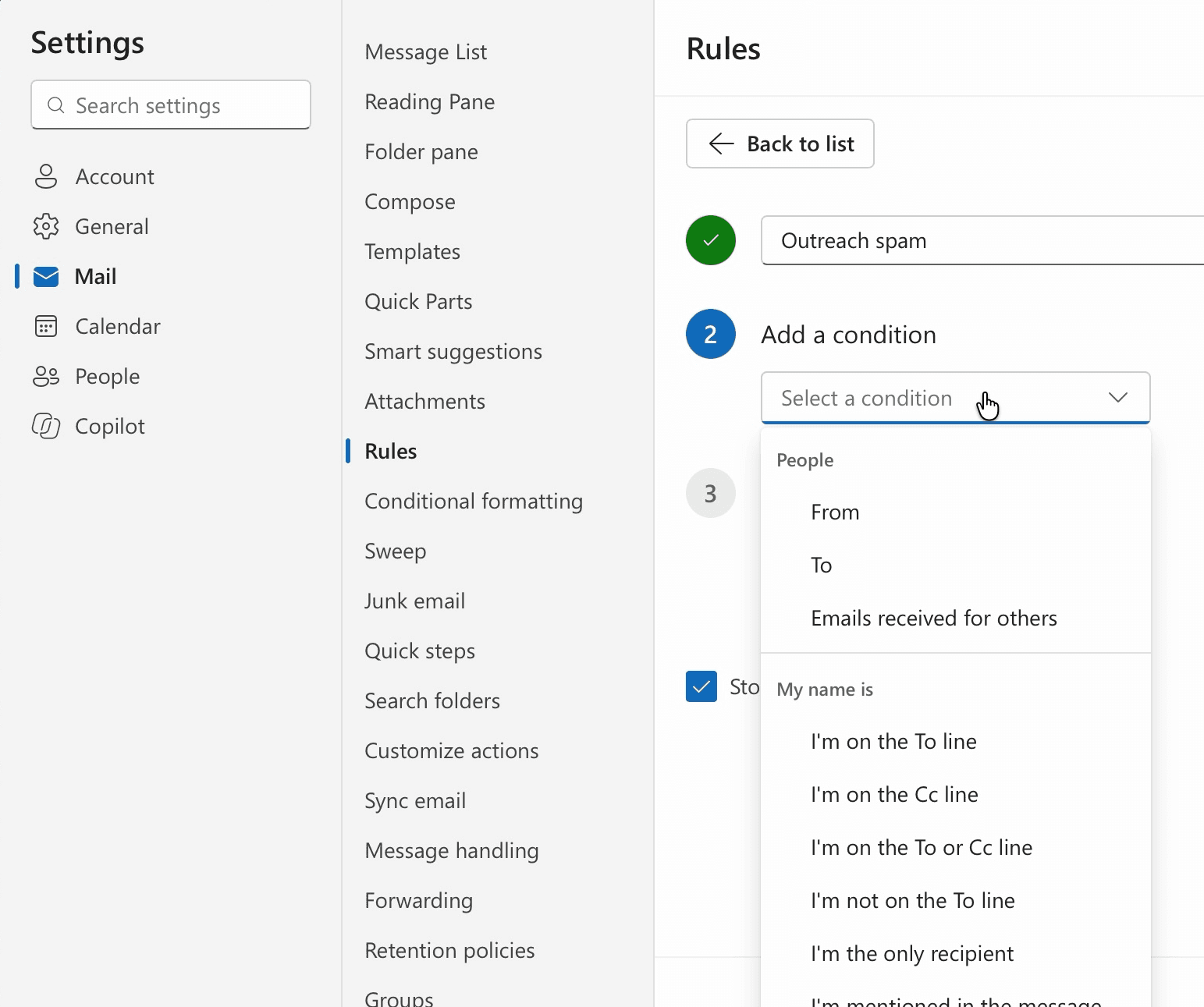
Go to Mail → Rules. In some versions, choose View all Outlook settings first.
- 3
Select Add new rule.
- 4
Give the rule a name, then choose a condition, such as sender or words in the subject.
- 5
Choose an action, such as moving the message to a folder or assigning a category.
- 6
Save the rule and test it with a message that matches.
The available conditions and actions can vary by account and Outlook version. If a rule could affect important mail, test it with a narrow condition first.
Create a rule from a message
In many Outlook versions, you can select a message and create a rule based on its sender or other details. This can be quicker when you want to organize a recurring newsletter or notification. Review the condition before saving so the rule applies only to the messages you intended.
Use rules safely
- Send routine updates to a folder you check regularly.
- Avoid automatically deleting messages unless you’re sure they are unwanted.
- Don’t use a broad sender rule for customer or work contacts who may send urgent requests.
- Review your rules after a role or project changes.
- If a message seems to have disappeared, check folders, archive, and Junk Email before assuming it was deleted.
To stop mail from one sender, see How to stop spam emails in Gmail and Outlook.
Find a message without building a rule
A rule is useful for future email, but it won’t always help with a message that already arrived. Search by sender, topic, or a phrase you remember. Scape can also help find work email and summarize a thread when you can’t remember its subject line.
Ask Scape
Find the email from Priya about the revised timeline.
Set up automatic labels by asking Scape
You can build a rule in Outlook, or describe the result you want to Scape. Scape can create a label and use your instructions to decide which messages belong in it. That is useful when the distinction is about the kind of message, such as a sales pitch versus a customer request, rather than one exact sender address.
Ask Scape
Create a Newsletters label for subscriptions and product updates. Automatically label matching emails, but keep customer questions and invoices out of it.
Check the proposed label and a few matching messages before adding auto-archive. A label groups messages; auto-archive also removes matching email from the main inbox. Those are separate choices. Keep a category visible while you check that Scape understands what belongs there.
Ask Scape
Turn on auto-archive for Newsletters. Keep the label in my sidebar so I can read those messages later.
Archived email remains available under its label and in search. If something important is included, refine the instructions or exclusions before leaving the setup running. Scape’s organization is managed in Scape; check Outlook's own rules separately if you already use them.
See how to organize your inbox for a complete label setup, or email triage for deciding which messages need a reply.
Related articles
How to organize your email inbox
Build a simple system for labels, filters, and daily email.
Read moreHow to stop spam emails in Gmail and Outlook
Report spam and manage unwanted mail in Gmail and Outlook.
Read moreManage a busy Outlook inbox
Find what needs your attention and keep Outlook email easier to work through.
Read more
Frequent questions
Answers to common questions. For anything else, the Scape team reads every email.
Contact ScapeHow do I create an email rule in Outlook?
In Outlook on the web or new Outlook, open Settings → Mail → Rules, add a rule, choose its conditions and action, then save and test it.
Can Outlook automatically move emails to a folder?
Yes. Create a rule with a condition, such as a sender or subject, and choose the folder as the action.
Why isn’t my Outlook rule working?
Check whether the rule is turned on, whether its conditions match the message, and whether another rule changes or moves the same email. Rule behavior can differ between classic Outlook and new Outlook.
Can I filter email from a shared mailbox?
Outlook rules may be available for shared mailboxes depending on the mailbox and account setup. Ask your Microsoft 365 administrator if the Rules option is missing.