Email management tips for a busy work inbox
Build a work email routine that keeps important messages in view.
 Hilma BengtssonUpdated
Start by deciding what needs your attention
A full inbox can make a normal workday feel like a string of tiny interruptions. These practical habits can help you spend less time sorting and more time on the messages that need you.
Not every new email needs the same response. Separate messages that need a reply, a decision, or a task from messages you only need to read or keep for reference. This is email triage, and it gives you a clearer place to start.
Check email in focused blocks
If your role allows it, choose a few times during the day to work through email rather than reacting to every notification. Keep notifications on for the people or situations that really are urgent.
Use a small number of folders or labels
A complicated folder system can become another thing to maintain. Start with a few useful categories, such as Action needed, Waiting, Reference, and Newsletters. Add more only when you notice a real need.
Let Scape handle the first pass of sorting
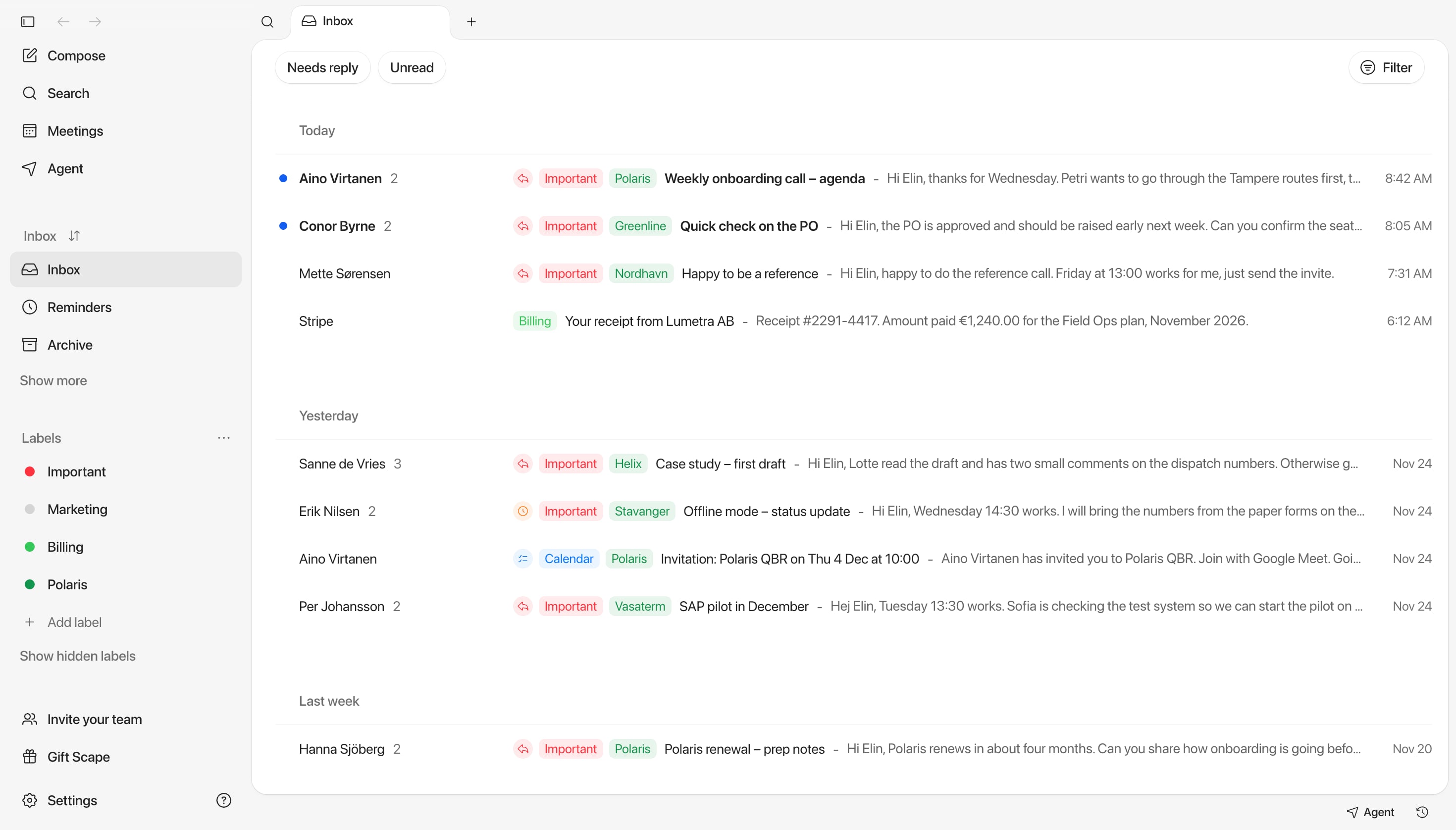
Once you have decided what your categories mean, you should not need to file every new message by hand. Scape can automatically label incoming email using instructions you set. Start with repeat mail that is easy to recognize, such as receipts, newsletters, or system notifications, and keep customer requests visible.
Ask Scape
Create a Receipts label and automatically add purchase confirmations and payment receipts. Exclude invoices that still need payment and anything asking me a question.
Review a sample of labelled messages. If the category is working, you can turn on auto-archive to keep that routine mail out of the main inbox while retaining it for later. If the distinction is wrong, edit the instructions instead of adding more overlapping labels.
This makes focused email sessions more useful: you begin with messages that need judgment, rather than sorting through every notification again. Follow the automatic label setup, then use email triage to choose what to answer first.
Make rules for predictable messages
Use filters or rules for recurring newsletters, receipts, and system notifications. Keep rules specific, and check folders regularly so you don’t miss a customer request hidden by a broad rule.
See How to filter emails in Outlook without missing important messages and How to filter emails in Gmail.
Write down the next action
When you open an email, decide what happens next: reply now, schedule time for it, ask someone else, or wait for a response. If you’re waiting, make a reminder so you don’t have to keep the message in your head.
Keep replies clear and short
Lead with the answer or request. Add background only when it helps the reader decide what to do. If a message needs a longer explanation, use short paragraphs or bullets.
Find old messages by the detail you remember
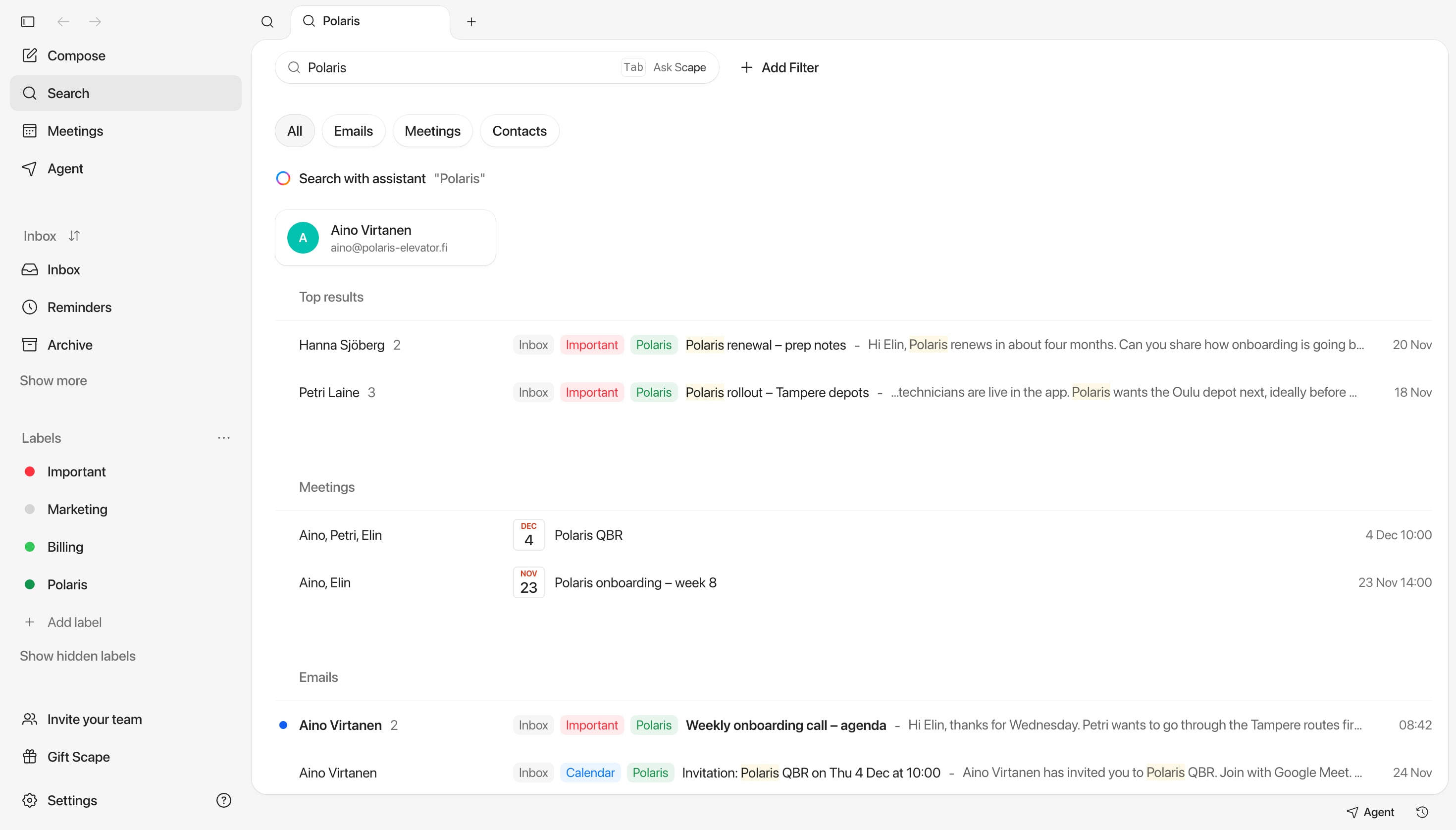
You don’t always remember the subject line. Search by a person, company, project, date, or phrase from the message. Scape can search connected email and help summarize a thread when you need to get back up to speed.
Ask Scape
Find the email where we agreed on the revised launch date.
Use AI drafts as a starting point
Scape can prepare a reply based on the conversation and connected context. Review the facts, tone, and any promises before sending. A draft should save you a first pass, not decide what you want to say.
Related articles
How to organize your email inbox
Build a simple system for labels, filters, and daily email.
Read moreEmail triage for a busy work inbox
See what needs a reply, what can wait, and what you can come back to later.
Read moreEmail workflow automation for recurring inbox tasks
Schedule useful checks without repeating the same search every week.
Read more
Frequent questions
Answers to common questions. For anything else, the Scape team reads every email.
Contact ScapeHow do I manage a busy inbox at work?
Prioritize messages by next step, use a small set of labels, filter only predictable email, and set reminders for anything you’re waiting on.
How often should I check my work email?
Choose a rhythm that fits your role and team expectations. Focused check-in blocks can reduce interruptions when immediate replies are not required.
How do I stop missing important emails?
Use focused inbox categories and narrow rules, and check folders where filtered messages go. Search by sender or topic if you’re looking for a specific message.
How to filter emails in Outlook without missing important messages
Can AI help manage work email?
Scape can organize messages, find email context, and draft replies for you to review.