How to use Attio MCP with your email
Use Attio account context while handling customer email.
 Hilma BengtssonUpdated
How to connect Attio to Scape
Connect Attio context to Scape so you can look up account details while handling email.
- 1
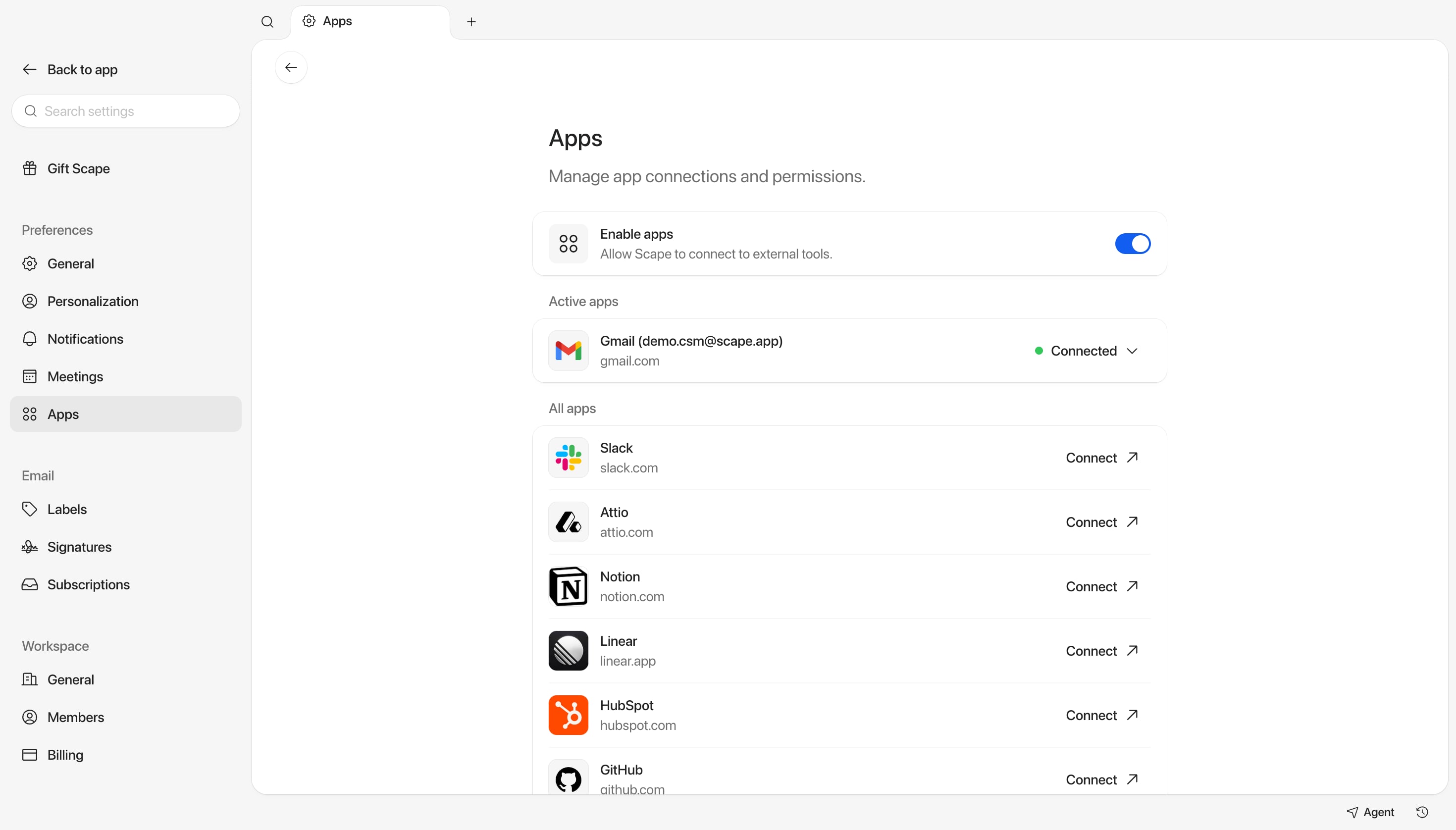
Open Apps in Settings
In Scape, go to Settings → Apps → Add an app and select Attio. Sign in and authorize your workspace in the browser.
- 2
Sign in to Attio
Follow the authorization prompts to connect the Attio workspace you use. No API key is needed for the standard connection.
- 3
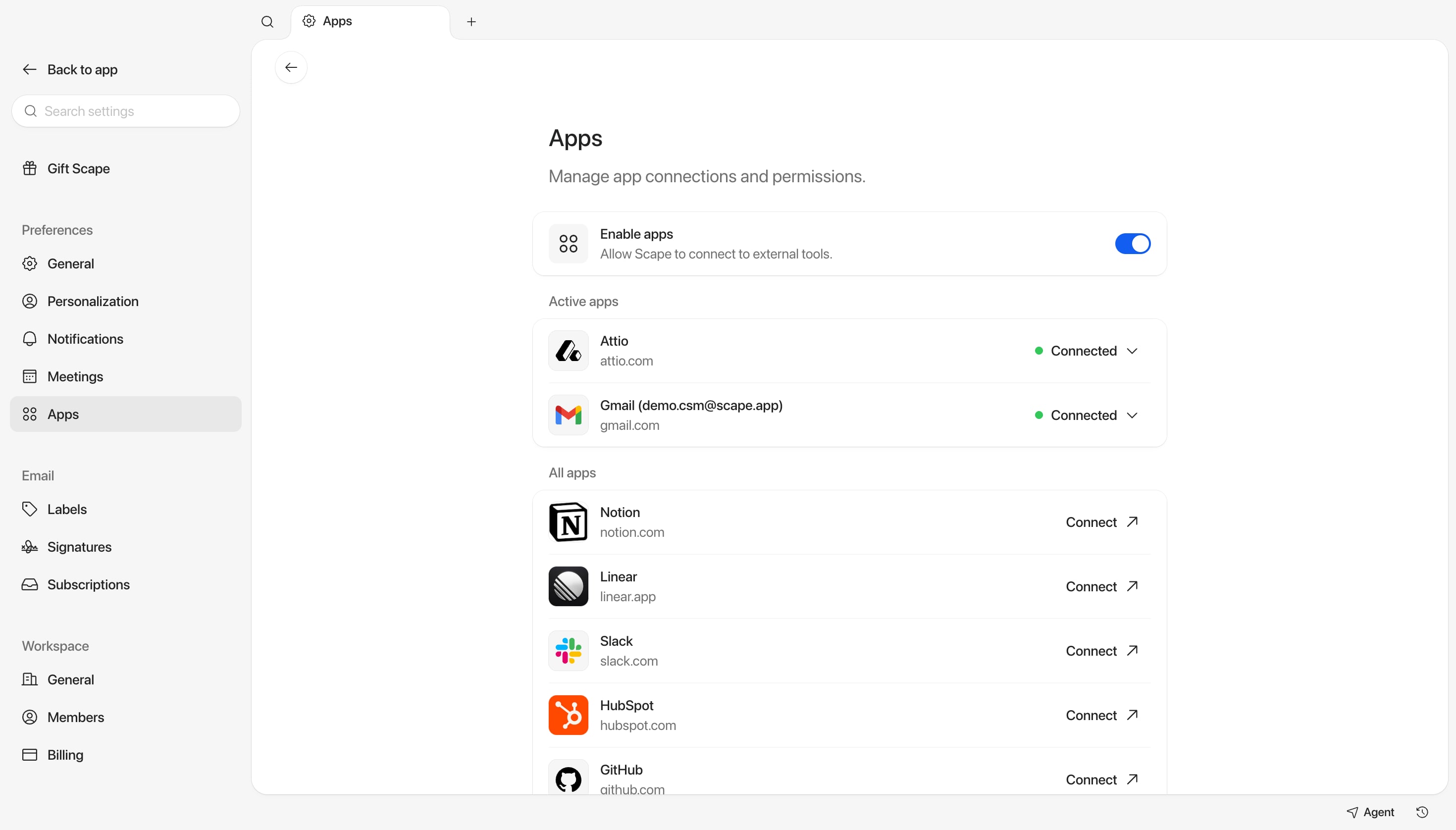
Check the connection
Return to Apps and confirm Attio shows as connected. Ask Scape to find a company or contact you know.
Prepare for a call using the deal and the conversation
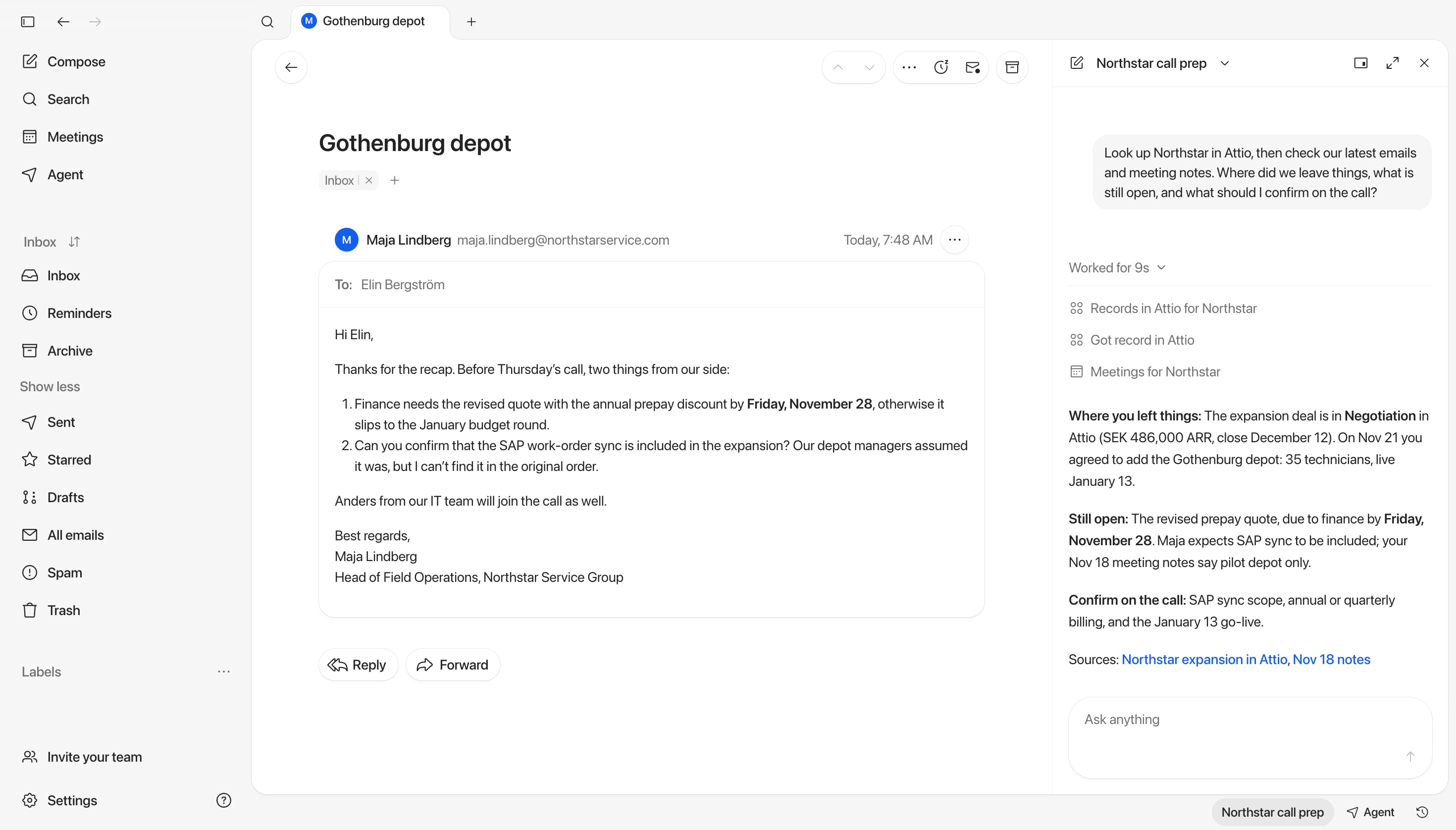
Scape can find people, companies, and deals in Attio, then bring the deal stage, recent notes, and open tasks together with email and meeting context. This helps when the CRM records a stage but the latest customer email explains what is holding the decision up.
Ask Scape
Look up Northstar in Attio, then check our latest emails and meeting notes. Where did we leave things, what is still open, and what should I confirm on the call?
Ask for links to the deal and the relevant conversation. Check any date or commitment against the original source before using it in the meeting.
Turn the meeting into a CRM note and follow-up task
After the call, ask Scape to find the existing deal and propose adding the outcome there. Be explicit about the record so a new note does not end up on the wrong account or create an unnecessary duplicate.
Ask Scape
Use this transcript to find the existing Northstar deal, propose a note with the decisions, and create a follow-up task for the agreed next step. Show me both before saving.
Attio changes are available to all Scape users for review and approval. Supported actions include creating and updating records, logging notes, and creating follow-up tasks. The connected Attio account still needs permission for the requested action; approving a change does not grant extra access.
Review the record, note content, task owner, and due date. If the meeting did not establish an owner or deadline, ask for clarification rather than filling in a guess.
Give the next account owner a useful handoff
A handoff should explain the relationship, not just repeat the deal stage. Use the CRM to establish the account and ownership, then use the conversation to show what the customer expects next.
Ask Scape
Summarize the Northstar deal stage, what the customer was promised, and who owns the next step. Link to the Attio record and the emails where those commitments were made.
Scape can then prepare an introduction or follow-up email using that context. Review it for anything internal that should stay in the CRM. See sales-to-customer-success handoffs and meeting preparation for the broader workflows.
Related articles
Catch up on a customer account after a sales handoff
Get the account history, open questions, and next steps in one useful summary.
Read morePrepare for a meeting with AI
Find the context you need before your next customer call.
Read moreTurn meeting notes into action items
Turn meeting notes into clear owners, next steps, and dates.
Read more
Frequent questions
Answers to common questions. For anything else, the Scape team reads every email.
Contact ScapeWhat is MCP?
MCP is a way for an AI assistant to connect to other apps and use information or actions they make available.
Can Scape search Attio records?
Yes. Scape can look up records available to the connected Attio account, subject to its permissions.
Can Scape edit Attio records?
Scape can prepare supported Attio changes for approval. The connected Attio account must have permission for the requested action.