An AI executive assistant can help with the work around email and meetings: sorting messages, finding details, preparing for calls, and drafting follow-ups. In Scape, you can use context from your email, calendar, meeting notes, and connected apps to help decide what to do next. You review drafts and choose what to send.
Definition: What is an AI executive assistant?
An AI executive assistant is software that helps with everyday tasks such as organizing email, finding information, preparing meeting notes, and drafting replies. It can prepare work for you to review; you decide what to use and what to send.
Scape can help with more than writing replies. Ask it to find an important email, catch you up on a customer conversation, look for a decision from a past meeting, or bring together details you need before your next call.
Ask Scape
Find the email with the Polaris Elevator Service deal terms and summarize what we agreed.
Ask Scape
What did Hanna say about the pricing proposal last month?
Ask Scape
Find the latest email from the customer about the launch date.
Scape can search your connected email and meeting context to help find the right information. Use its answer to get up to speed or go back to the original conversation.
If you’re getting ready for a call, Prepare for a meeting with AI can show you more ways to use Scape before a meeting.
Bring context together from connected apps
Work conversations often happen in more than one place. You might discuss a project in Slack, track tasks in Linear, keep documents in Notion, and confirm next steps over email.
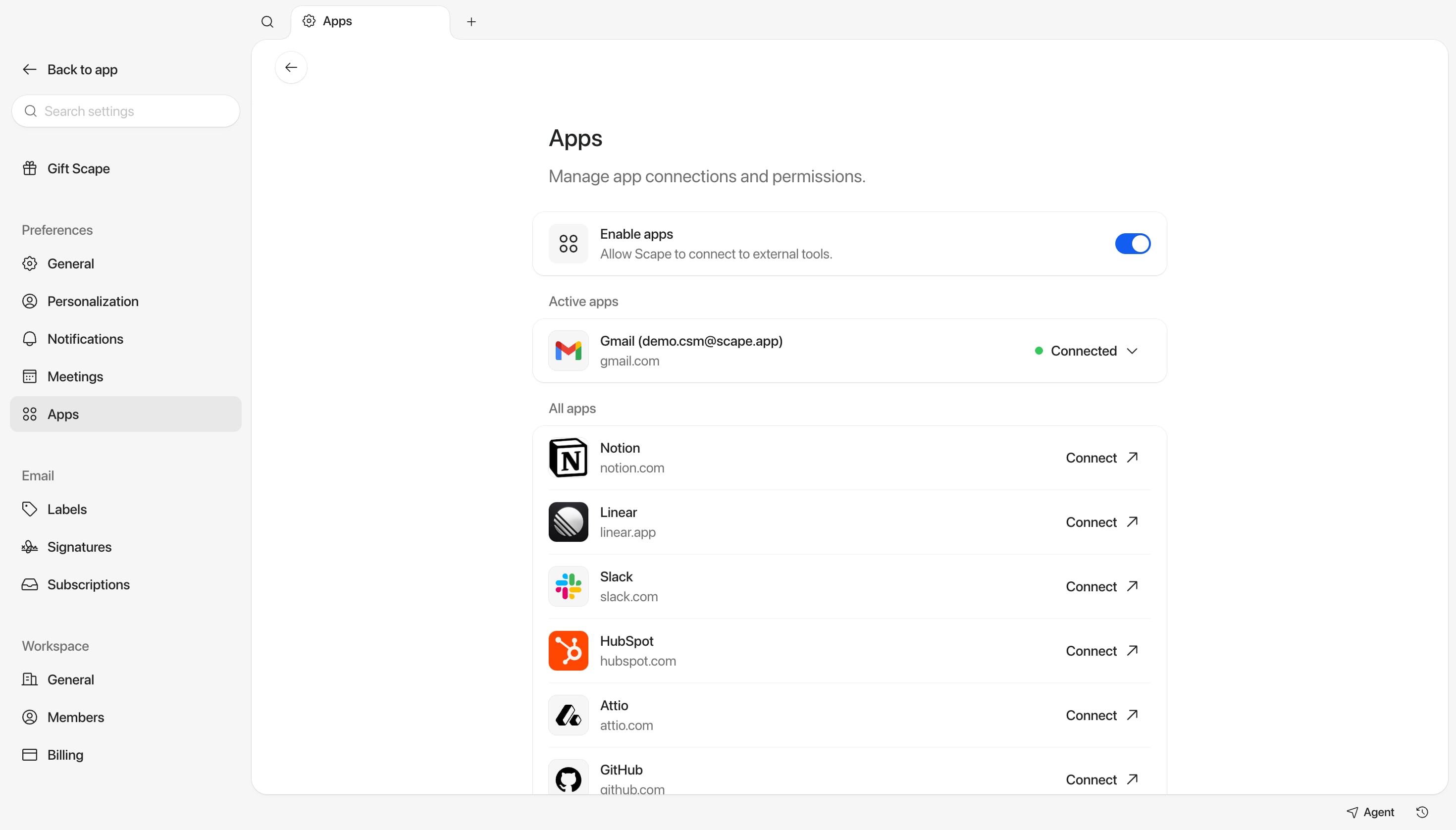
Connect the apps you use, then ask Scape to look for relevant details when you need them. Scape supports connections to services such as Slack, Linear, GitHub, and Notion. What Scape can find depends on which apps you’ve connected and what you ask Scape to look for.
Check Slack and my email for the latest update on the Acme launch.
Ask Scape
Find the Linear issue about the billing problem and summarize the latest comments.
Ask Scape
Look at the customer’s recent emails and our project notes, then help me prepare for the call.
Scape accesses connected apps in response to your requests. If you ask Scape to create or change something in another app, Scape will show you the action for approval first.
Triage your inbox with AI
Definition: What is inbox triage?
Inbox triage means sorting email so you can see what needs a reply, what needs another kind of action, and what can wait.
Scape sorts new email by what it appears to need from you. Messages that need a reply can be brought forward, while newsletters, receipts, and notifications can be organized into their own labels. You can customize your labels and tell Scape how to sort messages, so your inbox better reflects the way you work.
For example, you could ask Scape to find the emails that need a reply, group invoices under a label, or help you catch up on messages from a customer. You can check the results and adjust your organization as your priorities change.
Before a meeting, Scape can help you find useful context from your email, calendar, and previous meeting notes. Ask it to summarize a recent conversation, find what a customer asked for, or remind you of decisions made in an earlier meeting.
Ask Scape
Help me prepare for my meeting with Northstar. Find our recent emails and summarize the main open questions.
The summary gives you a starting point. You can open the original emails or notes if you want to check the details.
Scape can record supported meetings locally, without adding a bot to the call. Afterward, it can create a transcript and summary that you can search or use when preparing a follow-up. Works with Zoom, Google Meet, Microsoft Teams, FaceTime, and in-person meetings.
Definition: What is a meeting transcript?
A meeting transcript is a written record of what people said during a meeting. It can help you find a detail later without listening to the whole recording again.
Draft follow-up emails from the meeting
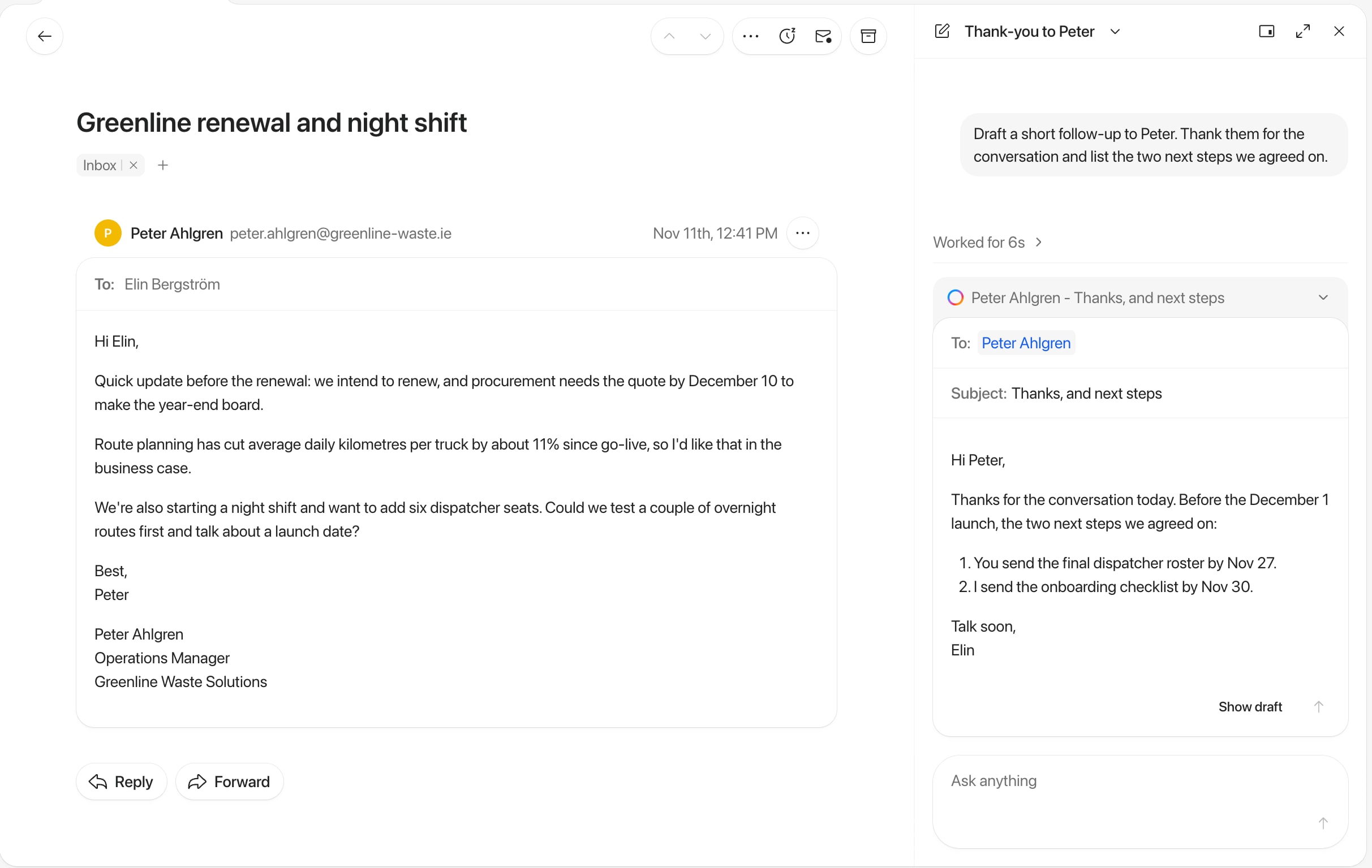
After a meeting, Scape can use the transcript, summary, and related email context to prepare a follow-up draft. Ask it to recap a decision, list next steps, or write a thank-you note. Read through the draft, make any changes you need, and send it when you’re ready.
Ask Scape
Draft a short follow-up to Peter. Thank them for the conversation and list the two next steps we agreed on.
Scape prepares the email for you. It doesn’t send an email to someone else until you choose to send it.
Security and compliance for your work conversations
Email and meeting transcripts can contain customer details, commercial terms, and internal decisions. Scape’s security controls cover how that information is handled, and its compliance documentation is available for your team to review.
SOC 2 Type II and ISO 27001
Scape holds a SOC 2 Type II attestation, with independent audits of its security controls each year. Scape is also certified to ISO 27001:2022 for its information security management system.
GDPR
Scape processes personal data in compliance with GDPR. Its Data Processing Agreement and subprocessor list explain the terms of that processing and which service providers are involved.
Customer data is not used for training
Neither Scape nor its AI subprocessors use customer data to train AI models. AI providers process requests to generate results under contractual retention limits.
An AI executive assistant helps with tasks such as organizing email, finding information, preparing summaries, and drafting replies or follow-ups. In Scape, you review AI-generated drafts and choose what to send.
Scape supports Gmail and Microsoft Outlook accounts. Some organizations may require an administrator to approve Scape before employees can connect their work inbox.
 Hilma Bengtsson