Notion integration
Find notes and project context in Notion while you work in Scape.
 Hilma BengtssonUpdated
How to connect Notion to Scape
- 1
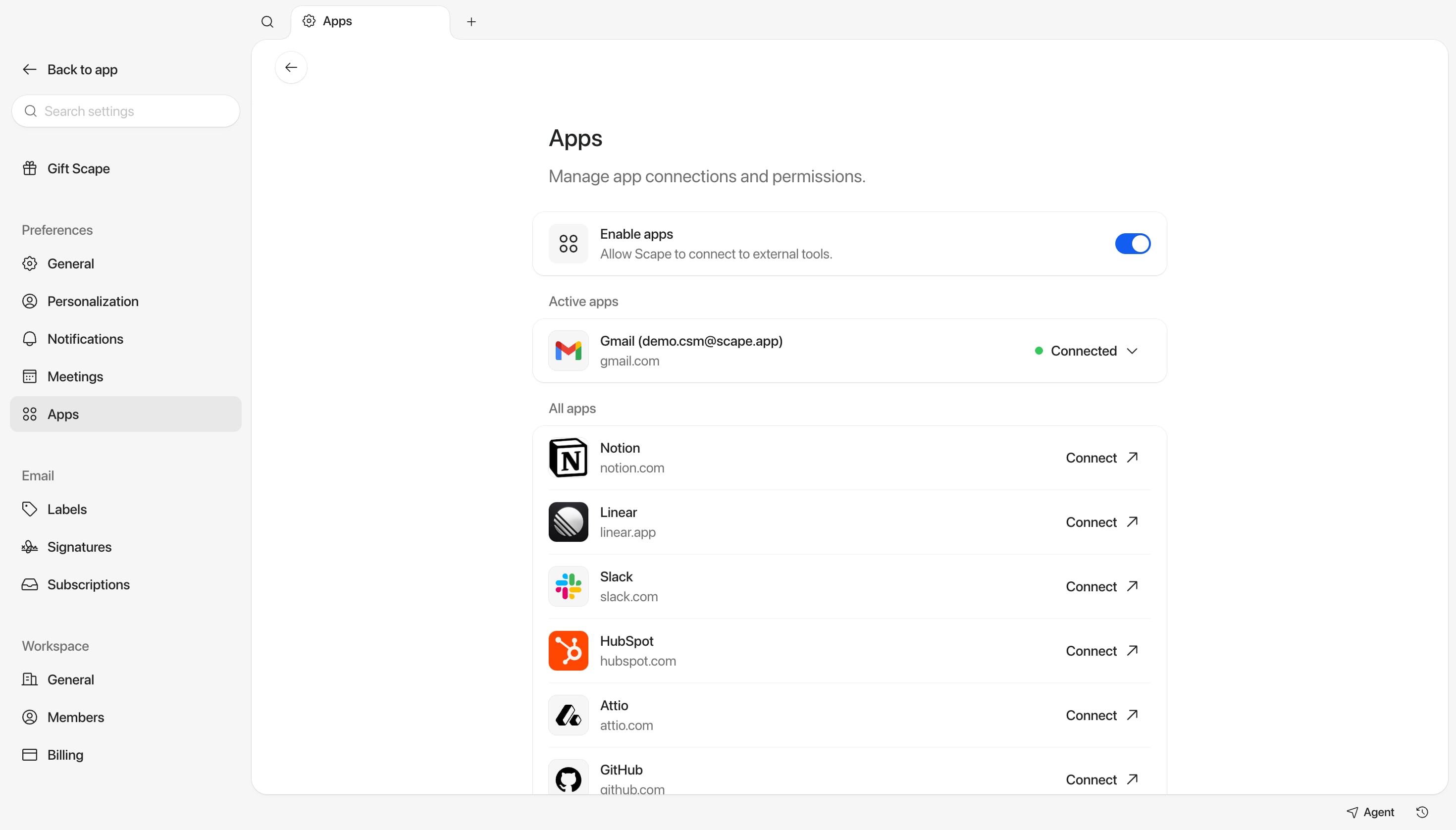
Open Apps in Settings
Go to Settings → Apps in Scape and choose Notion.
- 2
Authorize your workspace
Sign in to Notion and select the pages or workspace content you want to make available. Notion access depends on the pages shared with the integration.
- 3
Check the connection
Return to Settings → Apps and confirm Notion is connected. Ask Scape to find a page or project note you can access.
Find the project brief before answering a customer
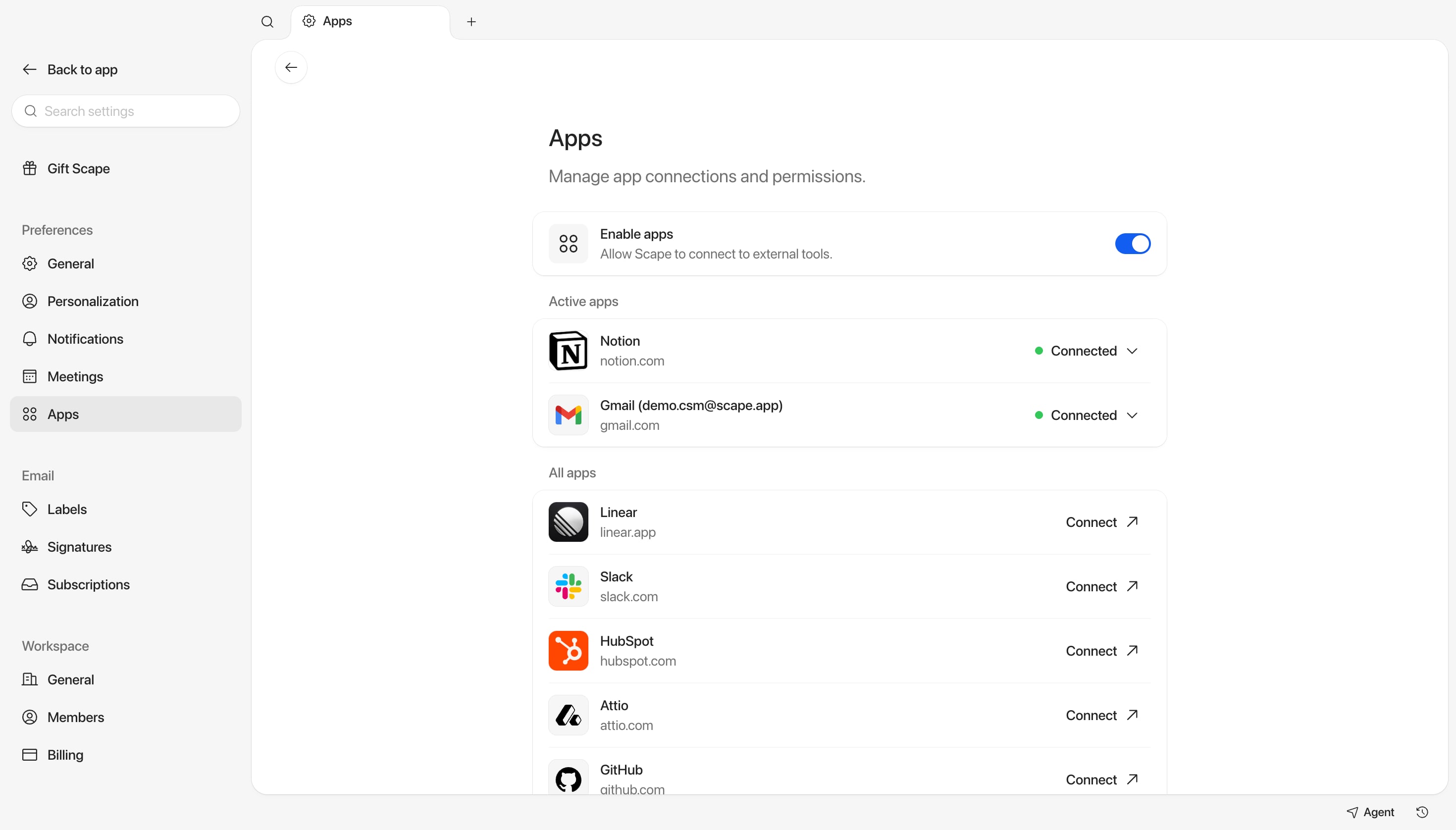
When the customer asks about scope, the answer may be in a Notion brief rather than the email thread. Ask Scape to find the relevant page and compare it with the customer’s latest message.
Ask Scape
Find Northstar’s onboarding brief in Notion. Compare the milestones with this email and list any difference in scope, owners, or dates. Link to the page.
Include the project or customer name and ask for the original page. A summary is useful for orientation, but open the source before confirming a commitment that may have changed.
Turn a meeting decision into a proposed page update
After a meeting, Scape can use the transcript and the existing Notion page to prepare an update. Name the destination and the part of the page that should change so the result fits the existing brief.
Ask Scape
Use this meeting transcript to update the Next steps section of the Northstar onboarding brief. Keep the rest of the page, include only agreed owners and dates, and show me the changes before saving.
Scape can create or update a page, prepare its title and content, choose the location, or reply to a discussion. Check the destination and proposed content in the review card before approving. Access depends on the pages available to the connected account.
Use the same context in the follow-up email
Once the decisions are clear, ask for a customer email using the brief and meeting notes. This keeps the recap tied to the project context rather than asking you to copy it between apps.
Ask Scape
Draft a follow-up from this transcript and the Notion brief. Include the agreed milestones and the one question that still needs the customer’s answer.
Review the wording and check that internal notes have not been included unnecessarily. See meeting follow-ups for the full record-to-reply workflow.
Related articles
Prepare for a meeting with AI
Find the context you need before your next customer call.
Read moreTurn meeting notes into action items
Turn meeting notes into clear owners, next steps, and dates.
Read moreDraft follow-up emails from meeting notes
Start with what was agreed, then check the draft before it goes out.
Read more
Frequent questions
Answers to common questions. For anything else, the Scape team reads every email.
Contact ScapeCan Scape search Notion pages?
Yes. Scape can search content shared with the connected Notion integration.
Can Scape update a Notion page?
Scape can prepare supported page updates for your approval. What you can change depends on the connected Notion permissions and available actions.
Does connecting Notion give Scape access to every page?
Access depends on what you authorize and share with the integration in Notion.