Manage a busy Outlook inbox
Find what needs your attention and keep Outlook email easier to work through.
 Hilma BengtssonUpdated
Make room for customer work between meetings
A busy Outlook inbox can mix customer requests with calendar updates, project notifications, internal conversations, and newsletters. Scape connects to Outlook and can help organize messages, find important details, and prepare replies using your email context.
Sort messages by what needs to happen next
Use Scape to bring attention to messages that need a reply, a decision, or a follow-up. You can ask it to focus on unread messages, a sender, or a particular project.
Ask Scape
Find the unread Outlook messages that need a reply today. Group them by customer.
Scape can organize email based on your preferences. Set up categories that fit your work and review them as your priorities change.
For practical inbox tips, see How to organize your email inbox.
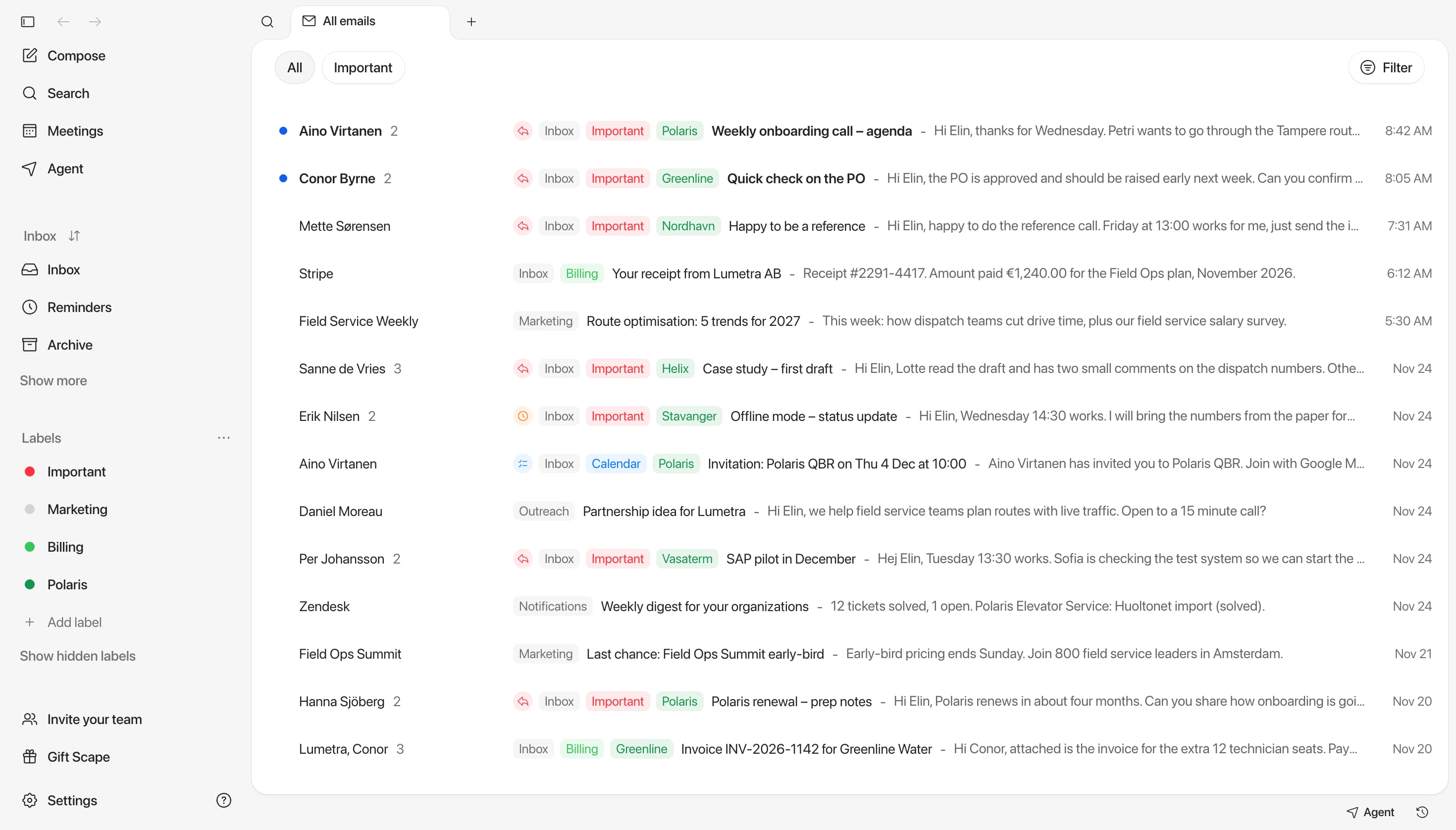
Find a message without scrolling
If you remember a person, topic, or detail but not the exact subject line, ask Scape to search your connected email.
Ask Scape
Find the message from Priya about the revised contract and summarize the latest decision.
Open the source thread to verify important details before acting on them.
Draft replies with the right context
Ask Scape to prepare a reply based on the Outlook conversation. You can ask it to keep the response brief, match your usual tone, or include a specific answer.
Ask Scape
Draft a reply confirming we received the report and will review it by Thursday.
Check that the date and commitment are accurate. Scape leaves the final review and sending decision to you.
Use meeting context alongside email
A customer conversation may continue in a meeting, then return to email. Scape can use supported meeting notes and related messages to help you pick up the thread or prepare a follow-up.
For more ways to connect inboxes, see Manage Gmail and Outlook in one inbox.
Handle the next reply between meetings
When you have a few minutes before the next call, start with the message that needs a concrete answer. Scape can suggest a response to routine requests; use Quick Draft when you need to give a more specific instruction. For example, ask it to confirm the detail you know and ask a single question about the missing piece.
Ask Scape
Draft a short reply in my writing style. Confirm the revised scope, ask which delivery date works, and do not promise a date that has not been agreed.
Quick Draft is available while composing with Cmd+J on Mac or Ctrl+J on Windows. Review the wording and the commitments before sending. If the reply depends on the call you just finished, ask Scape to use the meeting transcript and the email together.
For something that cannot be answered before the next meeting, set a reminder on the conversation. That gives you a clear point to return to it rather than repeatedly reopening the inbox to remember what was left.
See meeting follow-ups, automatic inbox organization, and Scape’s keyboard shortcuts for the individual parts of this workflow.
Related articles
How to filter emails in Outlook without missing important messages
Create Outlook rules without hiding important messages.
Read moreDraft follow-up emails from meeting notes
Start with what was agreed, then check the draft before it goes out.
Read moreScape keyboard shortcuts for Mac and Windows
Find useful Scape shortcuts for Mac and Windows.
Read more
Frequent questions
Answers to common questions. For anything else, the Scape team reads every email.
Contact ScapeDoes Scape work with Outlook?
Yes. Scape works with Microsoft Outlook accounts. Some organizations may require administrator approval before connecting a work account.
Can Scape organize Outlook email?
Scape can organize incoming email into categories based on the preferences you set, and help surface messages that need attention.
Can AI write a reply in Outlook?
Scape can prepare a reply draft using the conversation context. You review and send it yourself.
Can I use Gmail and Outlook in one app?
Yes. Connect both accounts to work with them in Scape.